
Filters in the Asset Library help you quickly narrow down search results and find the most relevant assets. Instead of browsing through a large number of results, you can apply filters to refine assets based on category, type, or other attributes.
This guide explains how to use filters effectively when searching for assets.
Step 1: Search for an Asset
- Open the Asset Library select any category.
- Use the Search Bar at the top of the page.
- Enter a keyword related to the asset you are looking for.
Example keywords:
- training template
- business icons
- customer service images
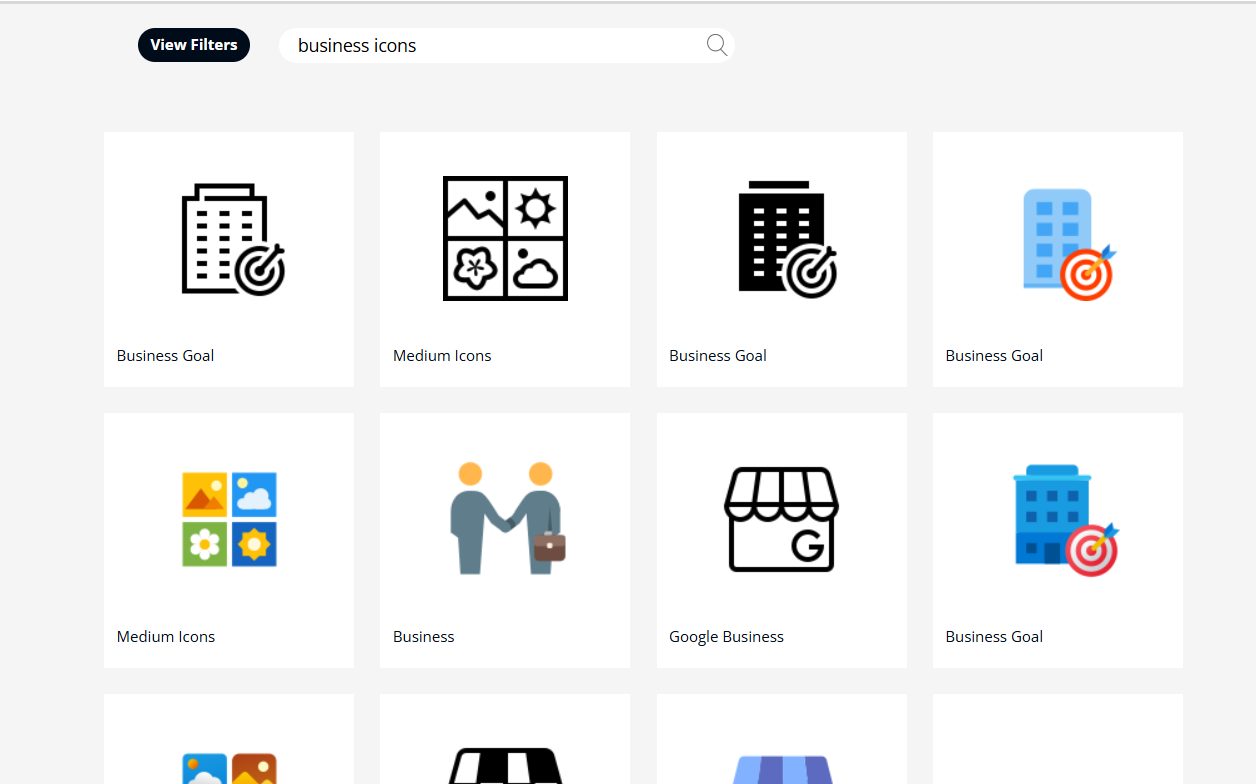
Step 2: View Search Results
After entering a search term, the Asset Library displays a list of matching assets.
You can browse the results or apply filters to narrow down the list.
Step 3: Apply Filters
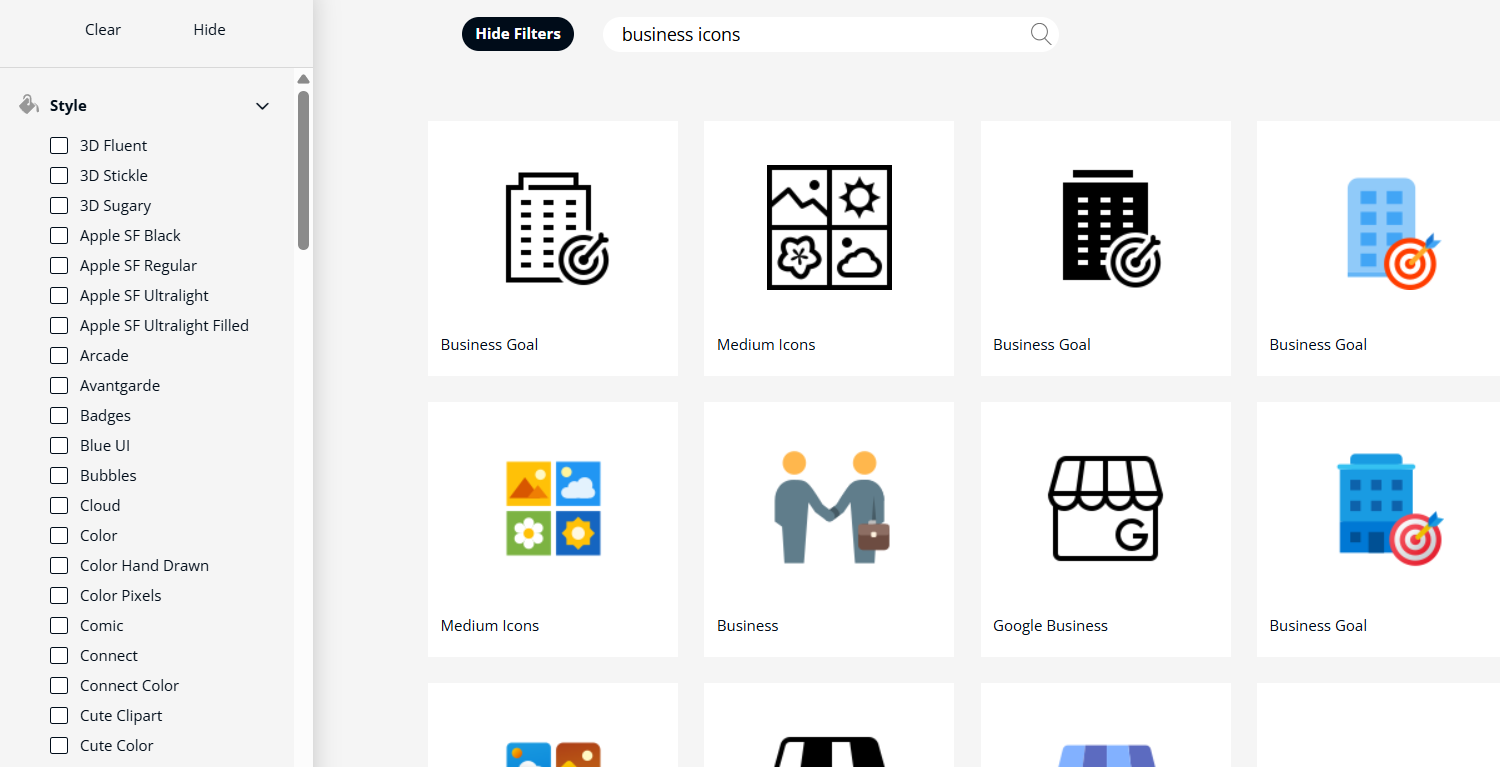
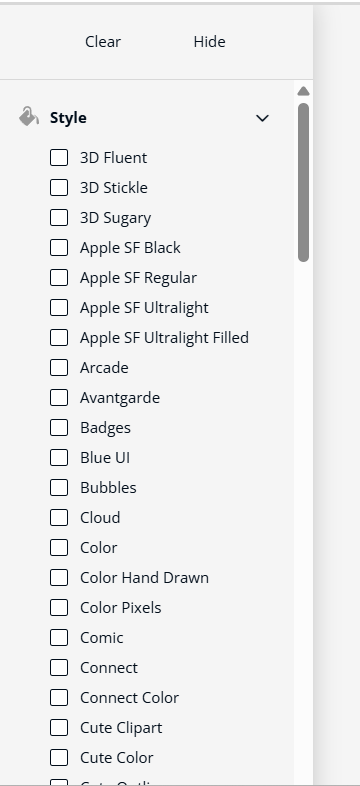
Filters are typically located on the left side or top section of the results page.
Common filters may include:
- Asset Type (Image, Icon, Template, Video, Audio)
- Category
- Style or Theme
- Orientation (Landscape or Portrait)
- Color or Design Style
Select the desired filter options to refine your results.
Step 4: Refine Your Results
As filters are applied, the results will automatically update to show only assets that match the selected criteria.
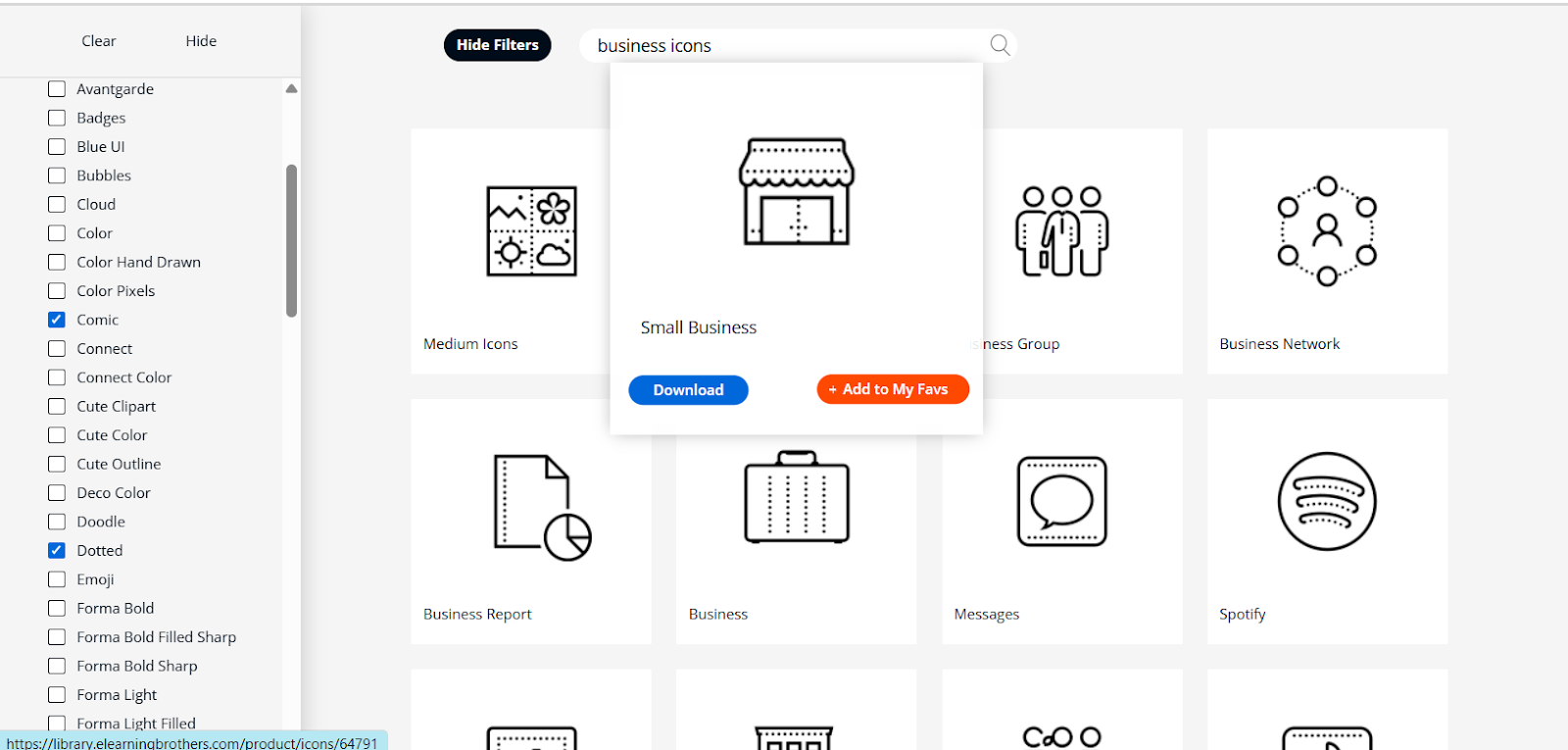
You can apply multiple filters simultaneously to further narrow down your search.
Example:
Search: Business
Filters:
- Asset Type: Icons
- Style: Comic, Dotted
Step 5: Clear or Modify Filters
If you want to adjust your search:
- Remove a selected filter.
- Choose a different filter option.
- Use the Clear Filters option to reset all filters.
This allows you to broaden or change your search results.
Tips for Using Filters Effectively
- Start with a general keyword, then refine using filters.
- Combine multiple filters to narrow results quickly.
- Remove filters if your search returns too few results.
- Use filters to maintain consistent design styles in your projects.