How to Access Templates
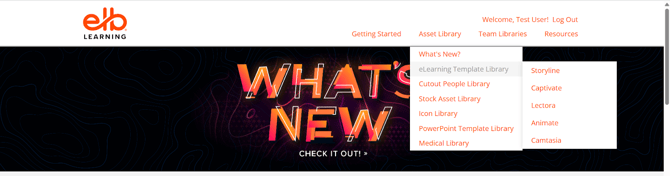
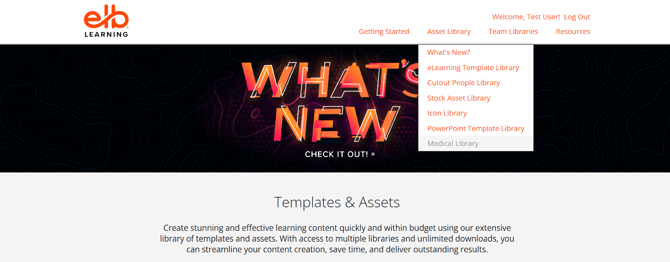
- Open the Asset Library.
- From the navigation menu, select Template Library (select desired template library).
How to Search Templates
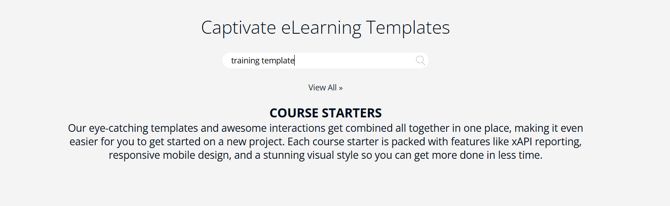
- Use the Search Bar at the top of the page.
- Enter keywords such as:
- training template
- quiz template
- interaction template
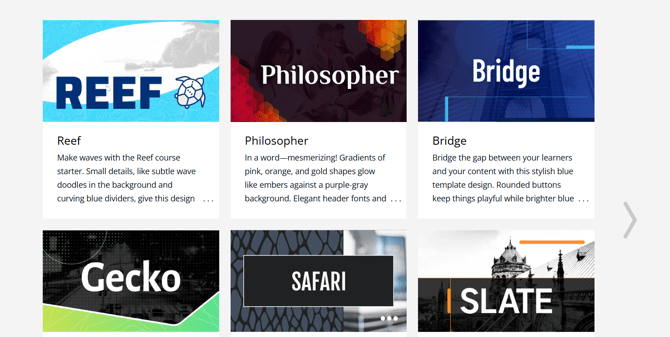
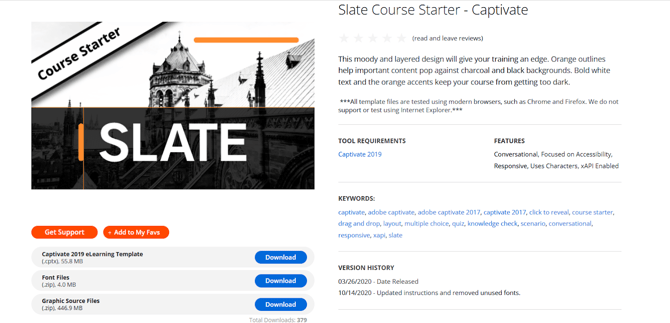
- Browse the results and open a template preview.
- Click Download to save the template.
Stock Asset Library
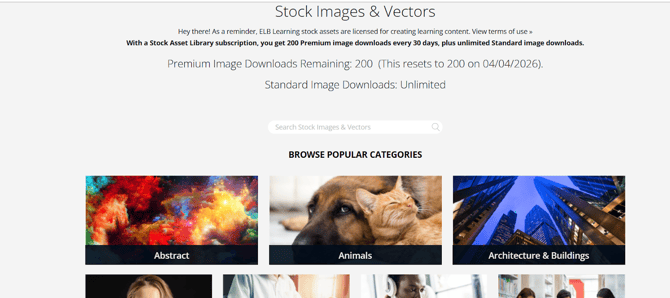
The Stock Asset Library provides high-quality stock images, videos, and audio files for use in eLearning content.
How to Access Stock Assets
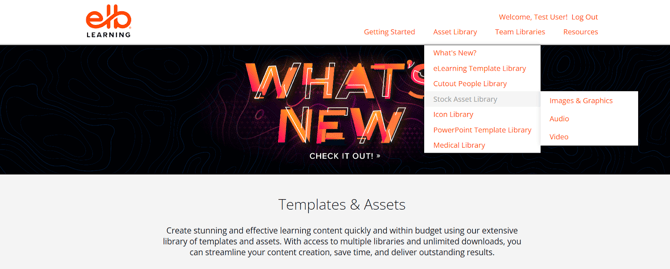
- Open the Asset Library.
- Select Stock Asset Library from the navigation menu.
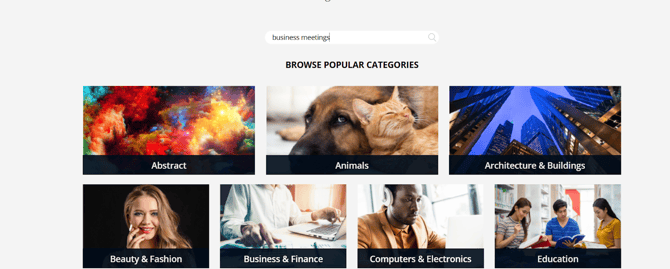
How to Search Stock Assets
- Use the Search Bar.
- Enter descriptive keywords such as:
- business meeting
- teamwork
- office environment
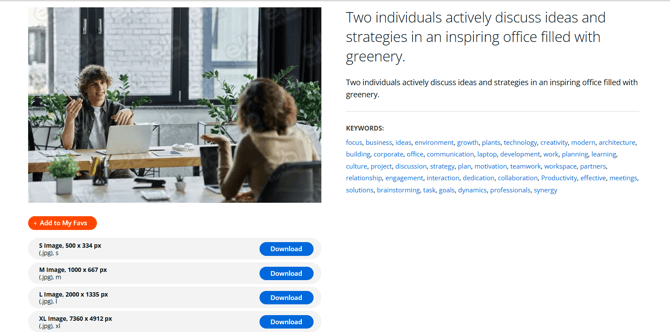
- Use filters to refine results by:
- images
- videos
- audio.
Icon Library
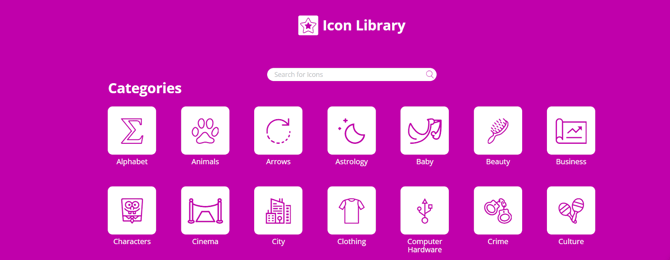
The Icon Library contains a wide collection of icons that can be used for slides, infographics, and interactive learning content.
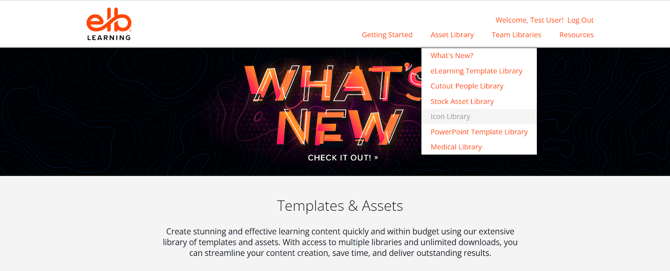
How to Access Icons
- Open the Asset Library.
- Click Icon Library from the category menu.
How to Search Icons
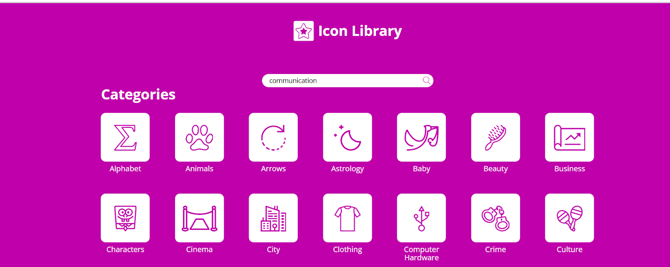
- Enter keywords in the Search Bar, such as:
- communication
- training
- leadership
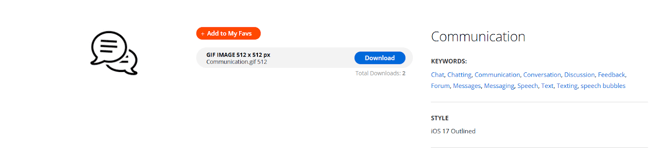
- Browse available icon styles.
- Select the icon and click Download.
Cutout People Library
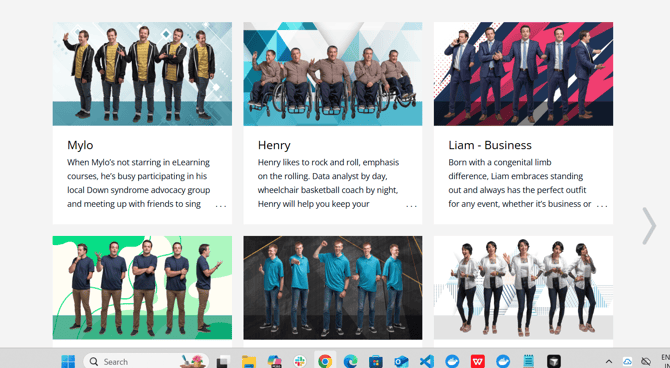
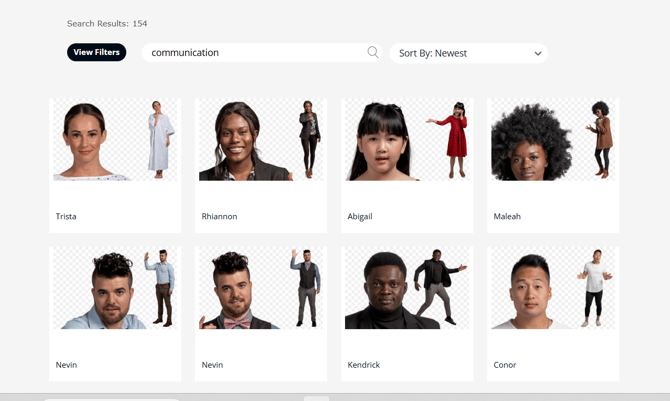
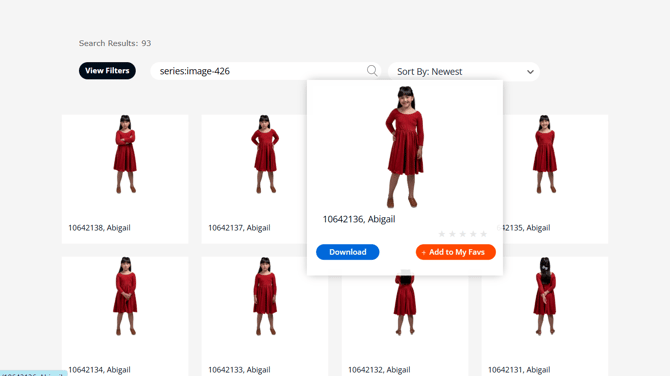
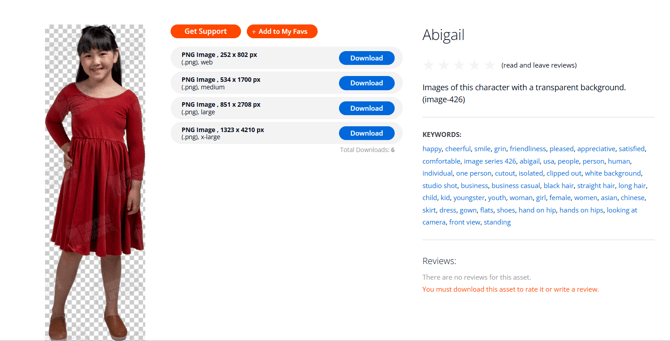
The Cutout People Library contains professional character images in different poses and expressions that can be used in scenario-based learning.
How to Access Cutout People
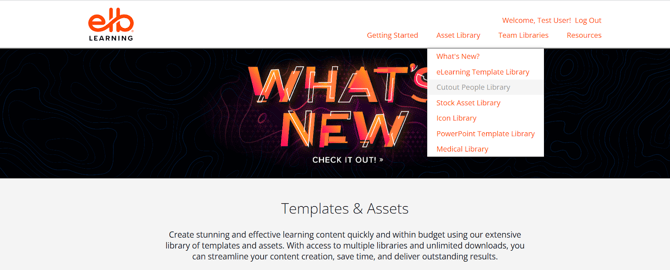
- Open the Asset Library.
- Select Cutout People Library.
How to Search Cutout Characters
- Use the Search Bar or browse categories.
- Filter characters by:
- gender
- profession
- pose
- expression.
- Select the image set and download the required pose.
PowerPoint Template Library
The PowerPoint Template Library provides professionally designed PowerPoint slides and presentation templates.
How to Access PowerPoint Templates
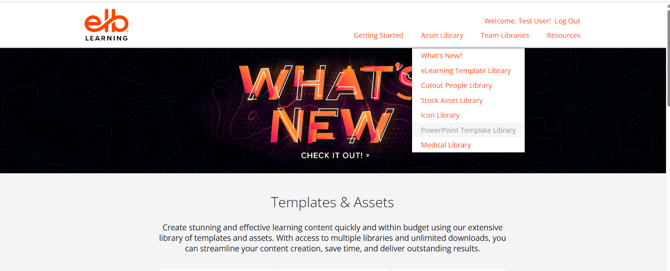
- Open the Asset Library.
- Select PowerPoint Template Library.
How to Search PowerPoint Templates
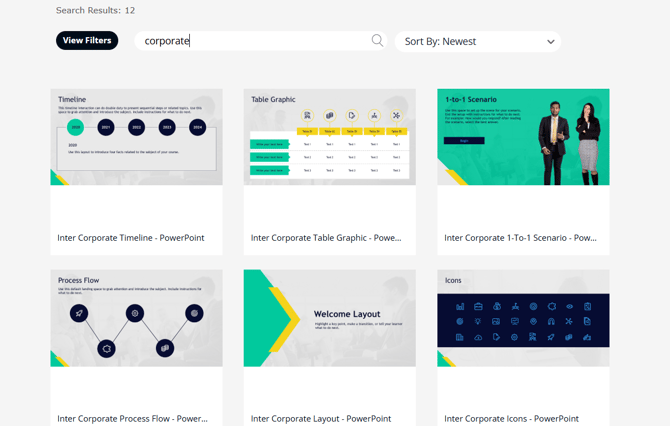
- Use the Search Bar.
- Enter keywords such as:
- corporate presentation
- training presentation
- infographic slides.
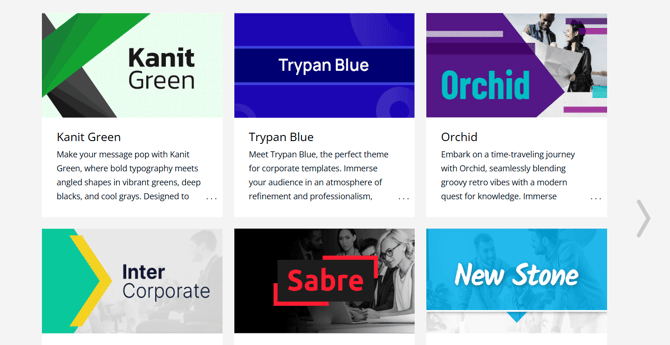
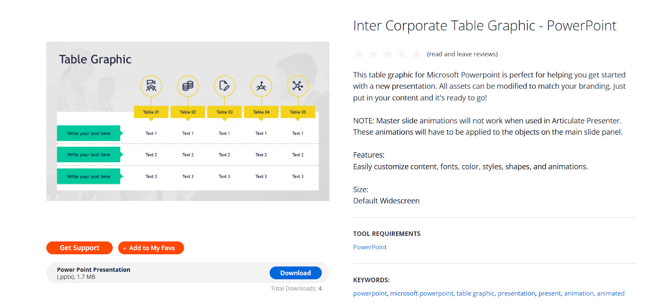
- Preview the template and click Download.
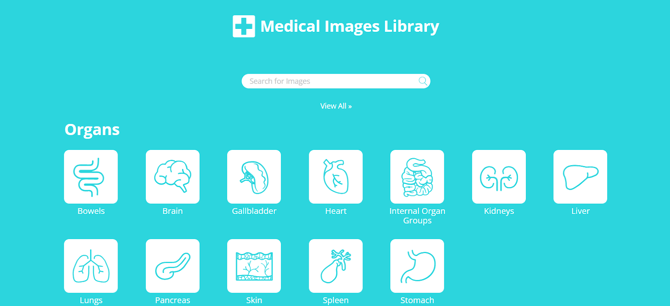
Medical Images Library
The Medical Images Library contains specialized medical illustrations and images used for healthcare and medical training courses.
How to Access Medical Images
- Open the Asset Library.
- Select Medical Images Library.
How to Search Medical Images
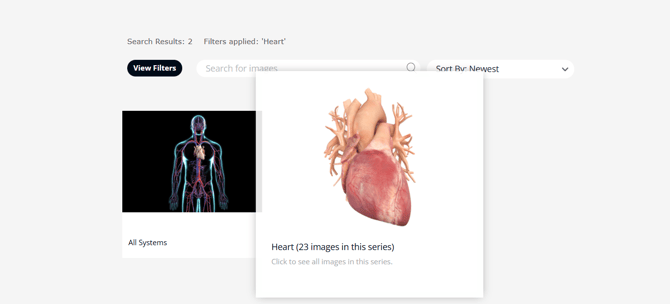
- Enter keywords such as:
- anatomy
- heart
- respiratory system
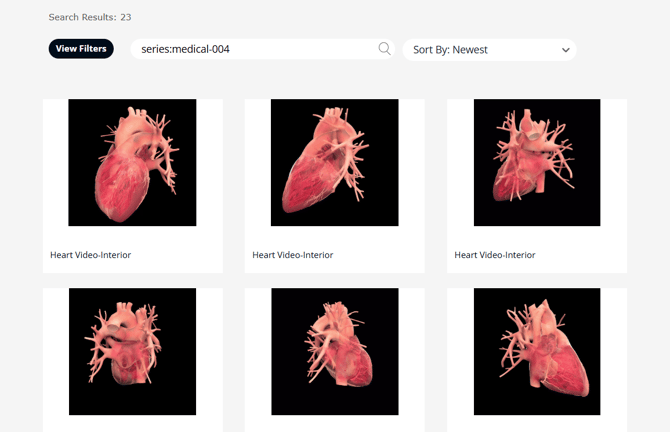
- Browse available medical illustrations.
- Preview and download the required asset.