
Technical Details:
-
Supported CenarioVR object type: Video objects only, not audio-only objects
-
Supported file format: SubRip Subtitle format (SRT)
-
Timestamp formats accepted:
-
Canonical or SubRip Timecode with a comma for milliseconds:
-
HH:MM:SS,mmm --> HH:MM:SS,mmm
-
-
Also accepted is the use of a period instead of a comma:
-
HH:MM:SS.mmm --> HH:MM:SS.mmm
-
-
-
Visual text editor to apply basic text formatting like Bold, Italic, Underline, and Color.
-
The following formatting tags are supported within the SRT file: <b>, <i>, <u>, and <font color="...">. Text formatting tags are optional.
How To: Add closed captions to a video
Open the closed captions window
-
Open your Scenario into Edit mode from the CenarioVR dashboard.
-
Select the video object you want to add closed caption to.
-
Right-click on the object and choose “Edit”, click Enter, or choose the Edit icon in the Project Explorer in the left-hand pane.
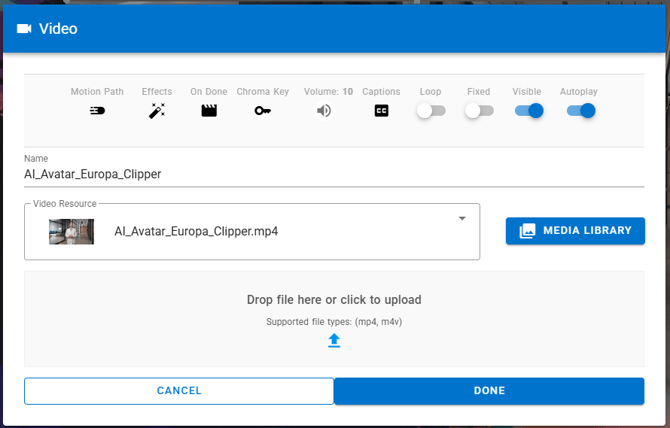
4. In the video’s controls/properties, click closed captions (closed-caption icon) to open the closed captions window.
You can now either let CenarioVR’s Closed Caption AI feature generate the SRT file for you or upload an SRT file you have previously prepared.
Option A: Generate closed captions (AI)
Use this when you want CenarioVR to generate an SRT file and contents from the video’s audio.
-
In the closed captions edit window, click the Generate button.
-
Wait for the generation to complete (this may take a bit of time, depending on the video's length).
-
Once complete, a closed caption SRT file is attached to the video and enabled by default, and the Edit Closed Captions Window is updated.
Option B: Upload your own SRT file
Use this option when you already have a closed captions file you produced externally.
In the closed captions window:
-
If this video has no closed captions yet, click the “Add Captions” button
-
If closed captions already exist: click the “Replace Captions” button
-
Use the window that opens to locate and choose your SRT file to upload.
After upload, the closed captions are attached to the video and enabled by default.
The Video Closed Captions window will update automatically to show additional features.
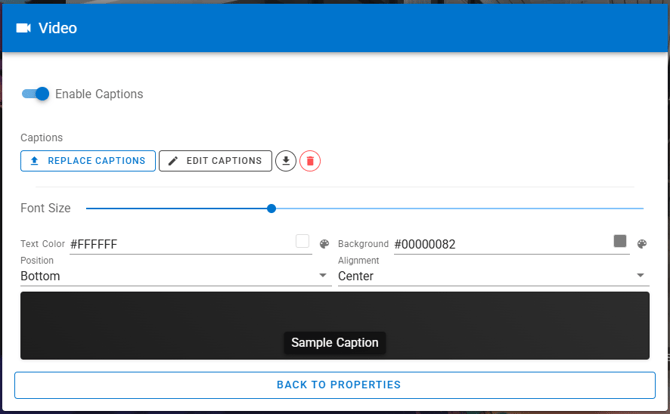
Editing Closed Captions Window Components
Enable/disable closed captions for this video
-
When a video has closed captions attached, the “Enable Captions” option is enabled
-
Toggle it on to display closed captions during playback, or off to hide them.
Note: if off, closed captions will not appear in the published course, and the user will not be able to turn them on or off.
Replace Closed Captions File
-
Use this button to upload a new SRT file and overwrite the current SRT file.
Edit Closed Captions File
-
Use this button to launch the closed caption editors, which are explained in the next section.
Download closed captions (SRT)
-
Click the Download button/icon to download the currently attached SRT file for the video. This will allow you to:
-
Edit the file in an external tool
-
Save the file to your source control system
-
Use the file to translate into other languages
-
Save a backup of the file.
-
Delete closed captions
-
Click the Delete (trash) button/icon in the closed captions window.
-
Confirm the deletion (this cannot be undone).
-
Closed captions are removed from the video.
Style the closed captions for a video
In the Edit closed captions window, you can adjust:
-
Font Size
-
Text Color
-
Background (color/opacity-style background color)
-
Position: Top / Center / Bottom
-
Alignment: Left / Center / Right
A small preview is shown in the window to help you pick readable settings.
To edit a video’s closed captions inside CenarioVR
All edits and changes made in the Rich Mode editor will show in the text mode editor and vice versa.
If you need to edit wording or timing in the closed captions:
-
Click the Edit closed captions button.
-
The Edit Cpations window will appear. There are two options for editing closed captions:
-
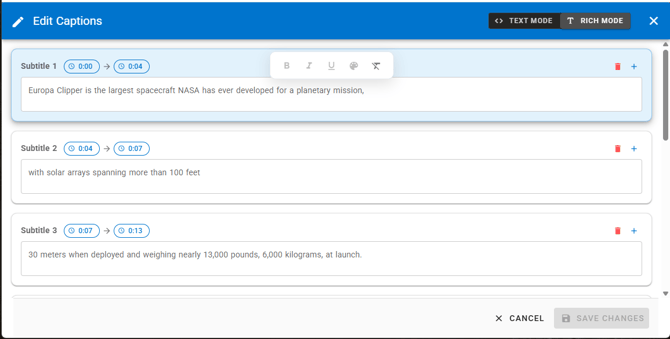
Rich Mode: edit closed captions visually as blocks (start time, end time, text)
-
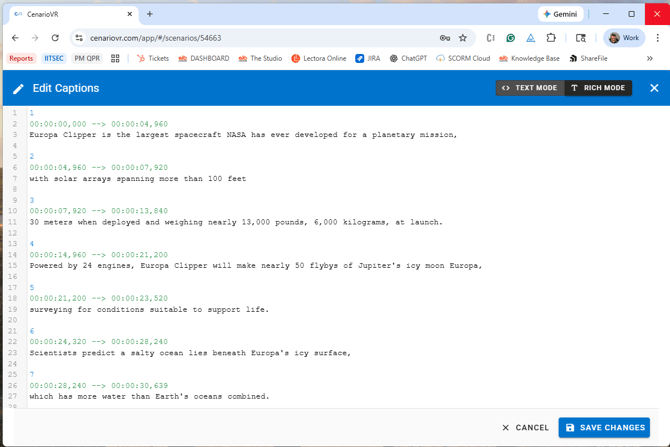
Text Mode: edit the raw SRT text file directly
-
Editing closed captions in Rich Mode:
-
Each subtitle block has its own editing section. Select the subtitle block to enable editing in that block and have the text formatting window appear.
-
Timecode editing - Use the timecode start and stop pop-up windows to change or fine-tune the times when this block starts and stops.
-
To apply formatting to text, select the text and then use the tool menu to apply formatting:
-
Bold
-
Italic
-
Underline
-
Colors
-
Clear Formatting
-
Editing closed captions in Text Mode:
-
The entire closed caption file is displayed. Each subtitle block has its section with a subtitle block number, a line with the time range for this block, and the text that will appear during this timeframe.
-
Subtitle Block Indice. These need to be sequential throughout the SRT file and should only be modified with care.
-
Timecode editing - You can adjust these numbers for more precise control of the timeframe for this subtitle text to display
-
Modify these values with care
-
They must be formatted exactly as created. Introducing syntax errors could block your changes from being saved.
-
The SRT standard separator between seconds and milliseconds is a comma “,”. To avoid the common mistakes of using a period “.” instead of a comma, CenarioVR allows the use of a period.
-
-
To apply formatting to a section of text, surround the text with formatting tags:
-
Bold <b>Text to be bold</b>
-
Italic <i>Text in Italic</i>
-
Underline <u>Text with underline</u>
-
Color <font color="#ff0000">Red Text</font> or <font color=”red”>Red text</font>
-
Important editing notes
-
Formatting errors are discovered live by the editor, and an error message will appear at the top of the window. Please address Errors when they are discovered, and do not switch to the other editing mode before resolving the error.
-
If your SRT has format errors, the editor will keep you in Text Mode until fixed. The
-
Common blocking issues include:
-
Missing closed captions numbers (indices)
-
Invalid/missing timestamp line. The format for a timestamp requires all of the zeros and characters timestamp: Example: 00:00:00,000 --> 00:00:04,960
-
Start time is greater than the end time
-
Missing a blank line between closed captions blocks
-
WEBVTT header (indicates a VTT file, which is not supported). While you can edit a VTT file to SRT format, you must adhere to the exact SRT format. Converting another format to SRT would best be done in an external text editor and then uploaded into CenarioVR using the Upload Closed Caption function.
-
-
Save your changes in the editor to apply them to the video.
Troubleshooting Video Closed Caption Issues
Closed captions don’t show during playback
-
Confirm the video has closed captions attached (On the Captions window, you see caption actions like Replace/Edit/Download/Delete).
-
Confirm “Enable Captions” toggle is turned on.
-
Confirm the SRT is a valid SRT format (not VTT) and timestamps are correct. Open the SRT file in Text mode and make sure there are no errors displayed by the editor.
Upload fails
-
Confirm the file is in SRT format and under 10 MB.
-
Confirm the file is not empty.
Rich Mode is disabled / editor forces Text Mode
-
The closed caption file might not be in SRT format or may have syntax errors.
-
Fix the reported SRT errors in Text Mode first (especially missing blank lines between blocks and invalid timestamps).
-
If Text Mode shows a blank file, most likely the original file was not an SRT format. Edit the file in an external editor and confirm the file is in the proper SRT format.
-
SRT format requires the sequential index number, the timestamp properly formatted, up to two lines of text, and a blank line at the end of the block to signify the end of the block.
Example SRT snippet
100:00:01,500 --> 00:00:04,000Welcome to the scenario.200:00:04,500 --> 00:00:07,200Follow the highlighted steps on screen.