
Overview
The Filters panel helps users quickly find relevant stock assets by narrowing down results based on specific criteria such as type, duration, orientation, style, and more. Filters are available across Images, Videos, and Audio with some media-specific options.
Accessing Filters
- Navigate to the Stock Assets Library
- Select a category:
- Images
- Videos
- Audio
- Locate the Filters panel (typically on the left sidebar or top bar)
- Apply one or multiple filters to refine results
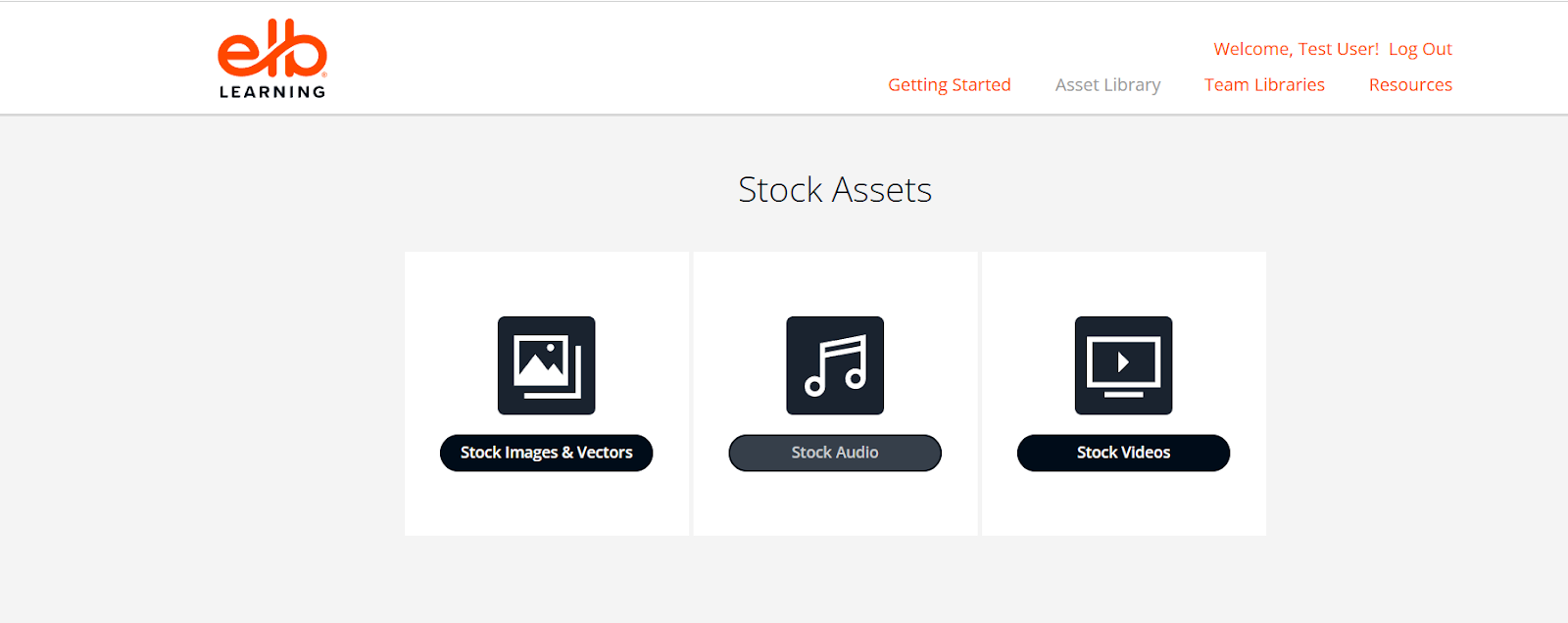
Image Filters
Available Filter Options
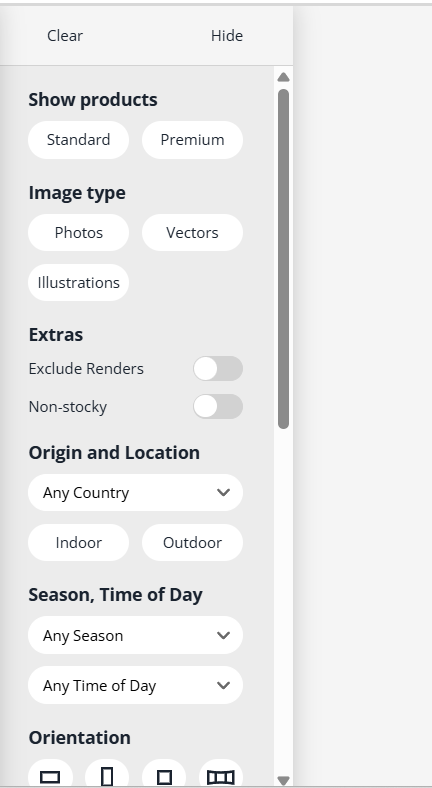
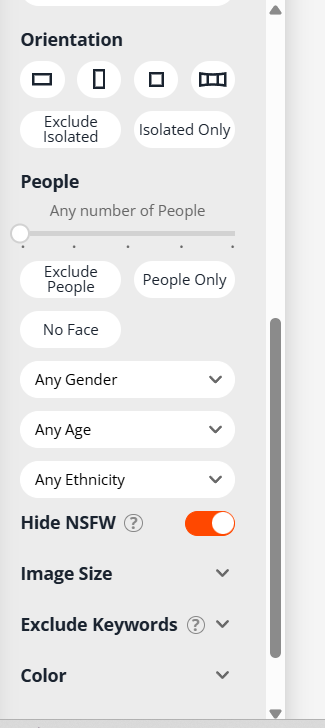
1. Orientation
- Landscape
- Portrait
- Square
Use case: Helps match layout requirements for courses or slides.
2. Image Type
- Photo
- Illustration
- Vector
Use case: Choose between realistic visuals or design-friendly graphics.
3. Color
- Filter by dominant colors
Use case: Maintain brand consistency or match theme colors.
4. People
- With People
- Without People
Additional attributes may include:
- Age group
- Gender
- Number of people
5. Background
- Isolated / Transparent
- Solid background
- Natural scenes
6. Style
- Modern
- Corporate
- Abstract
- Lifestyle
7. Keywords / Search Tags
- Use search bar alongside filters for precise results
Video Filters
Available Filter Options
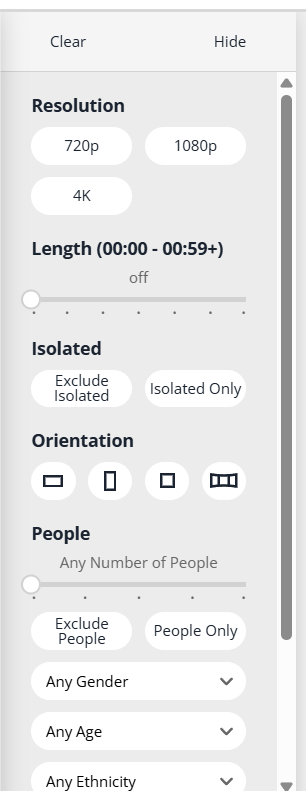
1. Duration
- Short clips (e.g., <10 sec)
- Medium (10–30 sec)
- Long (>30 sec)
2. Resolution
- HD (720p)
- Full HD (1080p)
- 4K
Use case: Optimize for performance vs. quality.
3. Orientation
- Landscape
- Portrait
4. Frame Rate
- Standard (24–30 fps)
- High frame rate (60 fps+)
5. Category / Theme
- Business
- Education
- Technology
- Nature
6. People Presence
- With people
- Without people
7. Loopable
- Loop-ready clips
Audio Filters
Available Filter Options
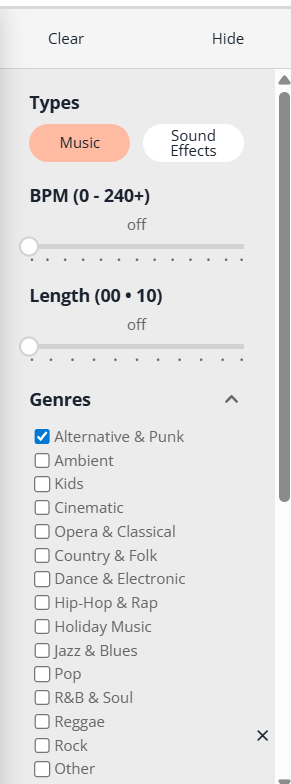
1. Audio Type
- Music
- Sound Effects
- Ambient
2. Genre (for Music)
- Corporate
- Cinematic
- Upbeat
- Calm
3. Mood
- Happy
- Inspirational
- Dramatic
- Relaxing
4. Duration
- Short
- Medium
- Long
5. Tempo
- Slow
- Medium
- Fast
6. Instruments / Style
- Piano
- Electronic
- Acoustic
7. Loopable
- Loop-ready audio tracks
Using Multiple Filters
- Users can combine filters to narrow results further
- Example:
- Image → Photo + Landscape + Business
- Video → 4K + Short Duration + No People
- Audio → Music + Upbeat + Short Duration
Resetting Filters
- Use “Clear All” / “Reset Filters” option
- Returns results to default (unfiltered) view
Best Practices
- Start with broad filters, then refine
- Combine keywords + filters for accuracy
- Use duration and resolution filters for performance optimization
- Preview assets before downloading
About This Update (Earlier Version Context)
This article replaces the earlier version “Filtering Stock Assets” (last reviewed February 2020).
The previous content provided basic guidance on filtering media; this updated version reflects the enhanced Stock Asset Library, expanded filter options, and improved user experience across Images, Videos, and Audio.