Overview
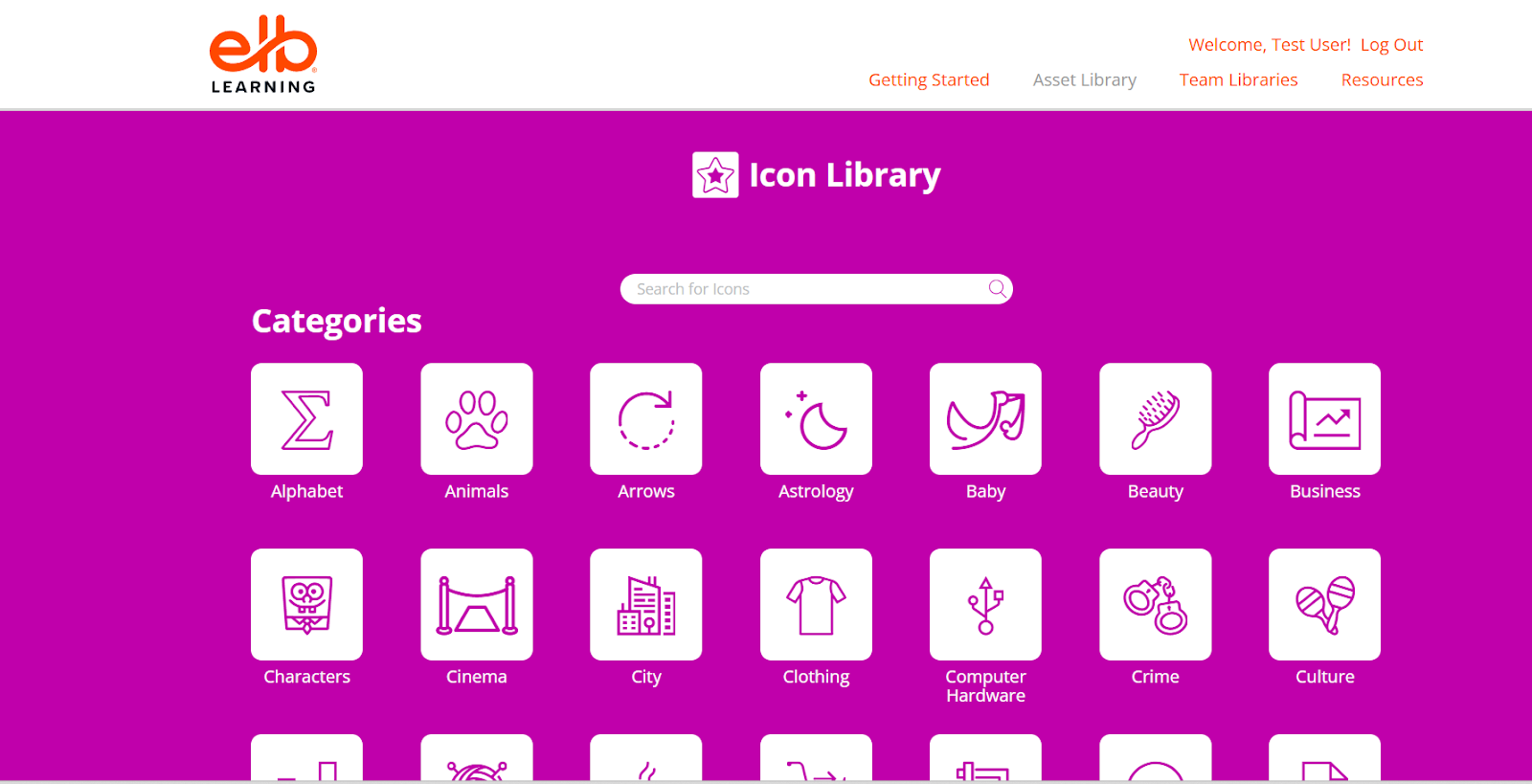
The Icon Library within the Asset Library provides a comprehensive collection of icons that can be used in eLearning courses, presentations, and digital content. Icons help visually represent concepts, improve user engagement, and enhance the overall design of learning materials.
This guide explains how to access, search, filter, preview, and download icons effectively.
What This Covers
This section provides a structured guide to discovering and using icons efficiently within your projects, along with key areas including
Accessing the Icon Library
To access the Icon Library:
- Open the Asset Library.
- Navigate to the Icon Library from the main menu.
You will be directed to a page displaying available icon sets and categories.
Searching for Icons
You can search for icons using the Search Bar.
Steps:
- Enter relevant keywords such as:
- communication
- training
- leadership
- settings
- technology
- Browse the displayed results.
- Select an icon to preview its details.
Using specific keywords helps you find the most relevant icons quickly.
Using Filters for Icon Search
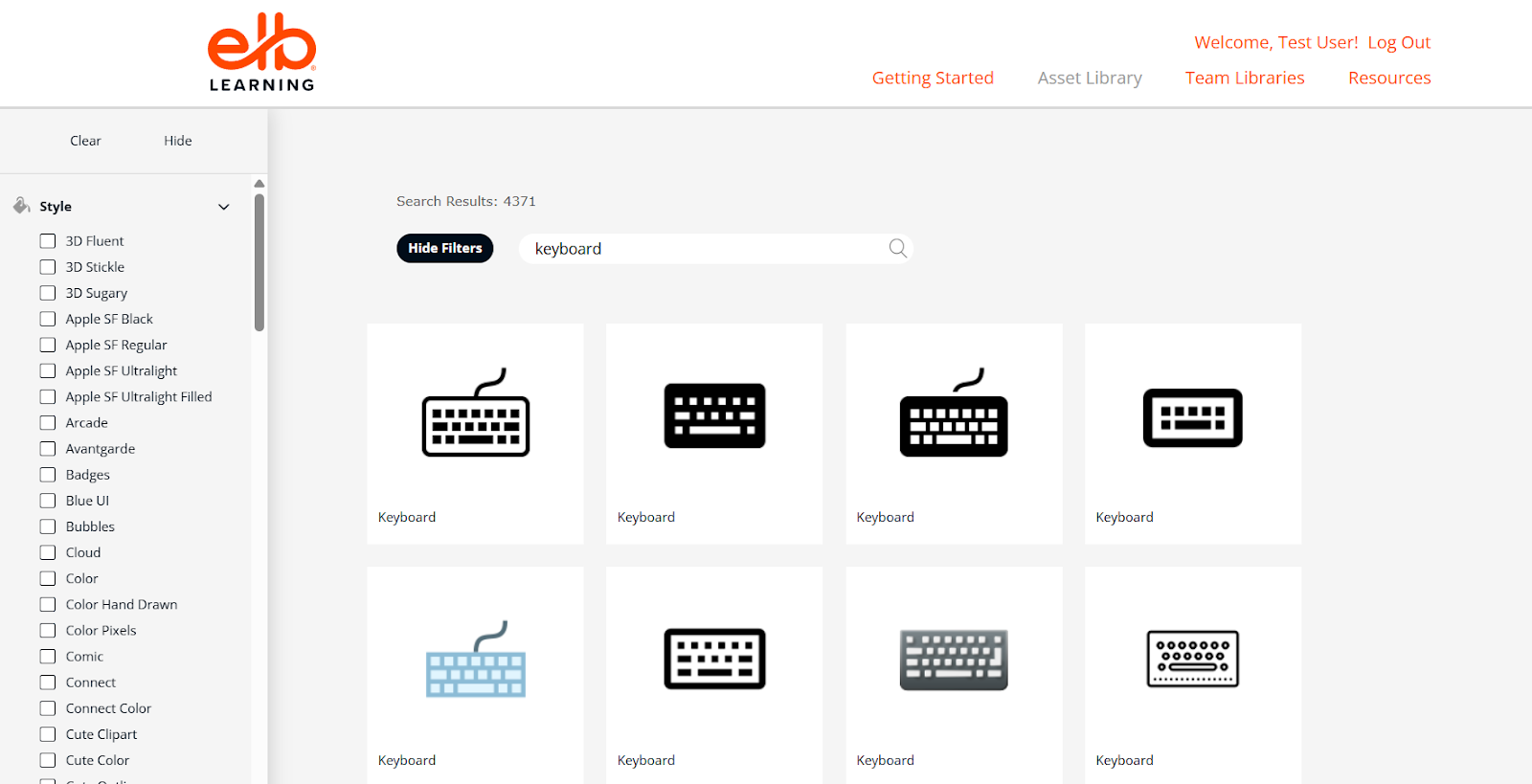
Filters help refine search results and locate icons more efficiently.
Common Filters:
- Category: Business, Education, Technology, Healthcare, etc.
- Style: Flat, Line, Solid, Outline
- Color
- Orientation/Format
Best Practice:
Apply filters such as Style + Category to maintain consistency across your project.
Previewing Icons
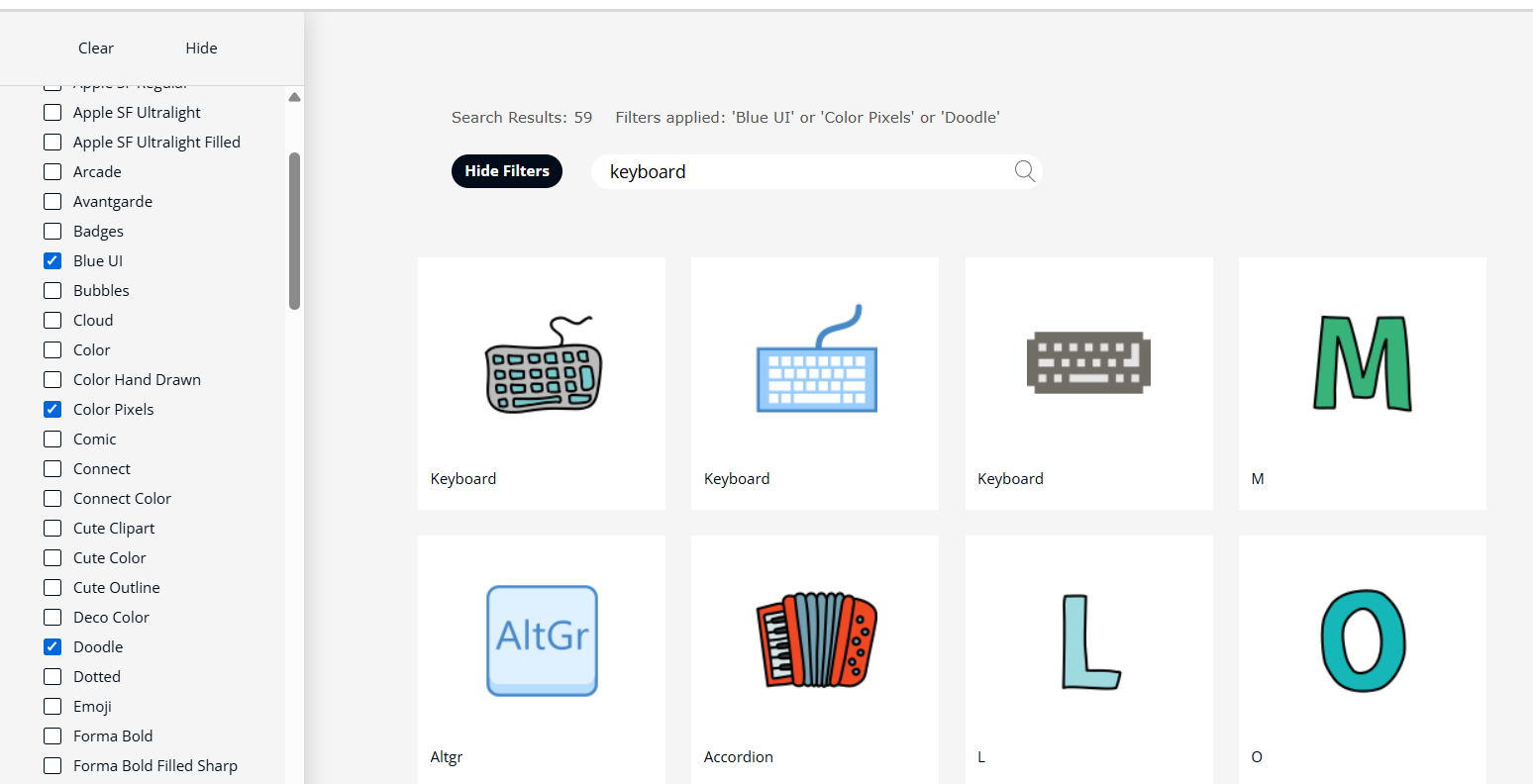
Before downloading, you can preview icons.
Steps:
- Click on an icon.
- View the preview and available variations.
- Check:
- Design style
- Color options
- Suitability for your content
Previewing ensures the icon matches your design requirements.
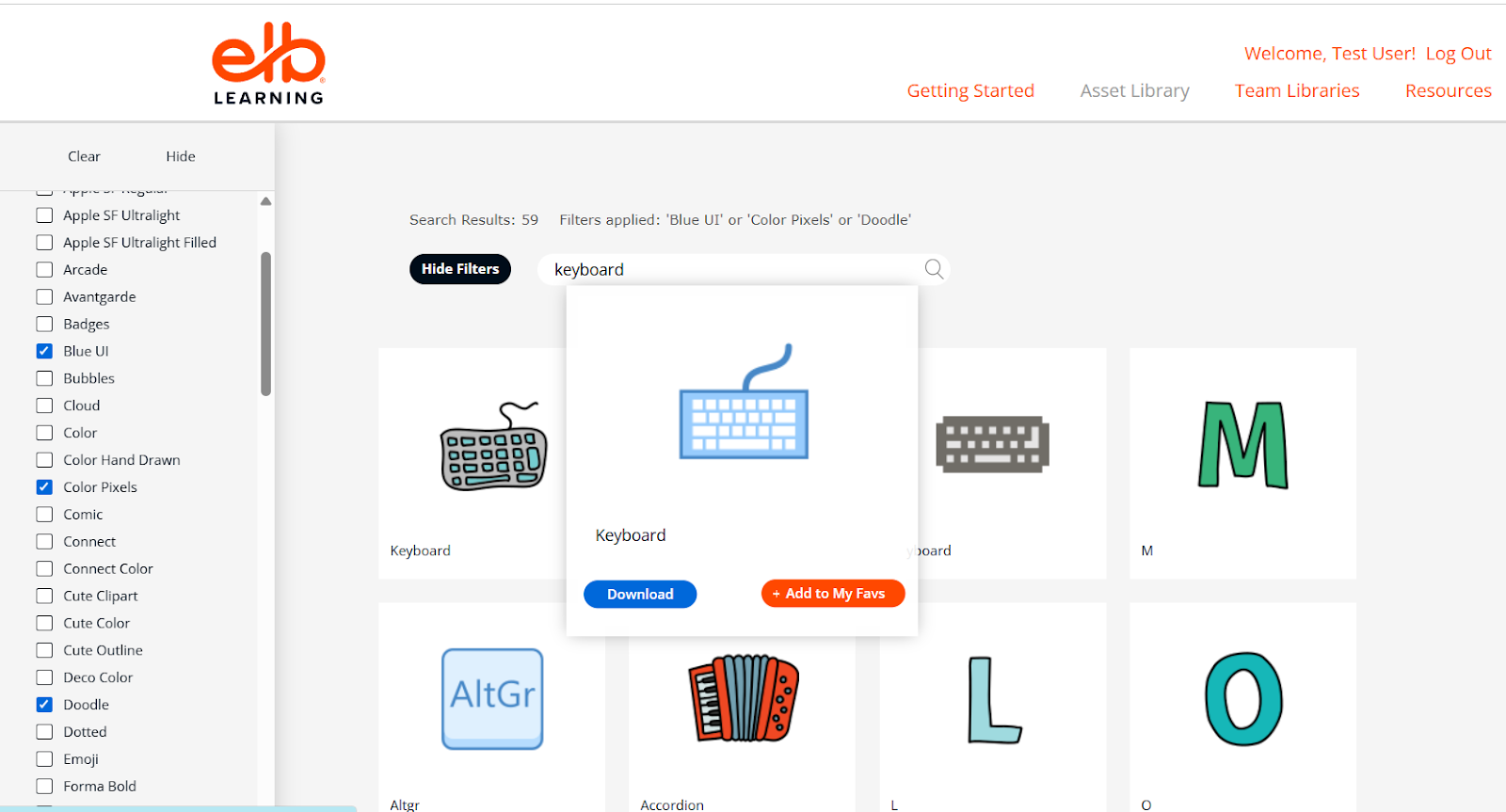
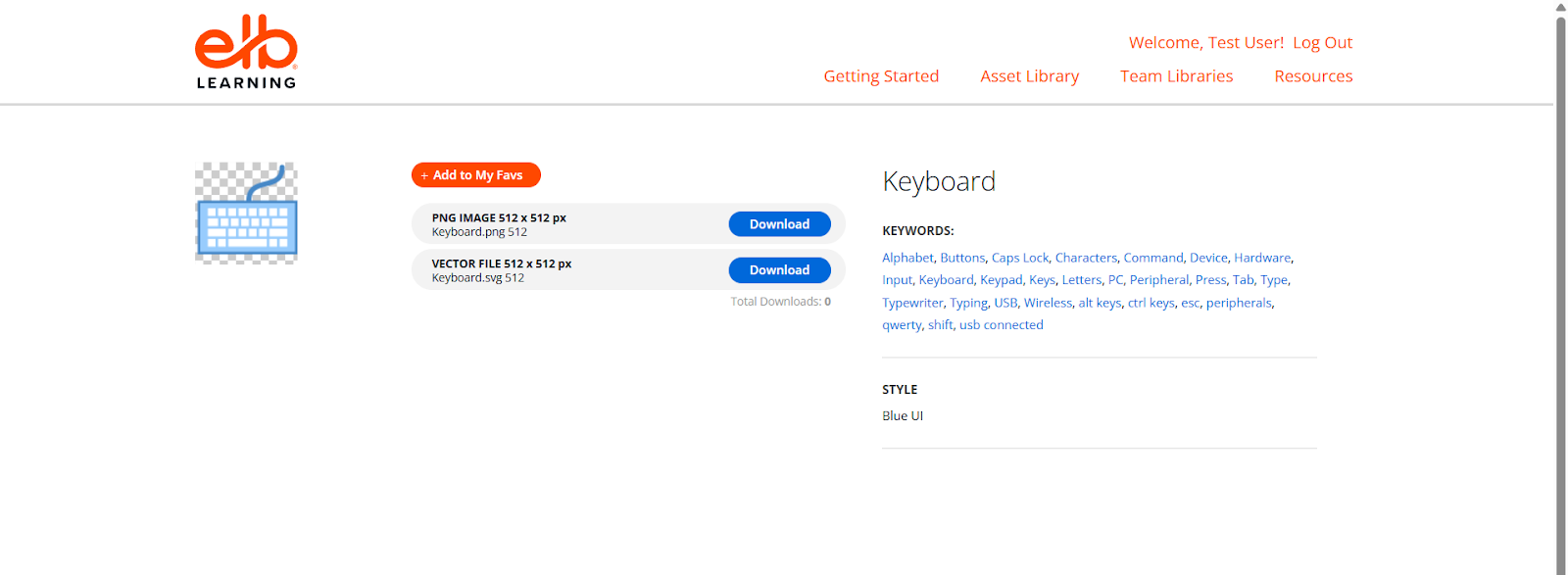
Downloading Icons
To download an icon:
- Open the icon preview page.
- Click the Download button.
- Save the file to your computer.
- Insert the icon into your project or authoring tool.
Icons are typically available in formats suitable for editing and resizing.