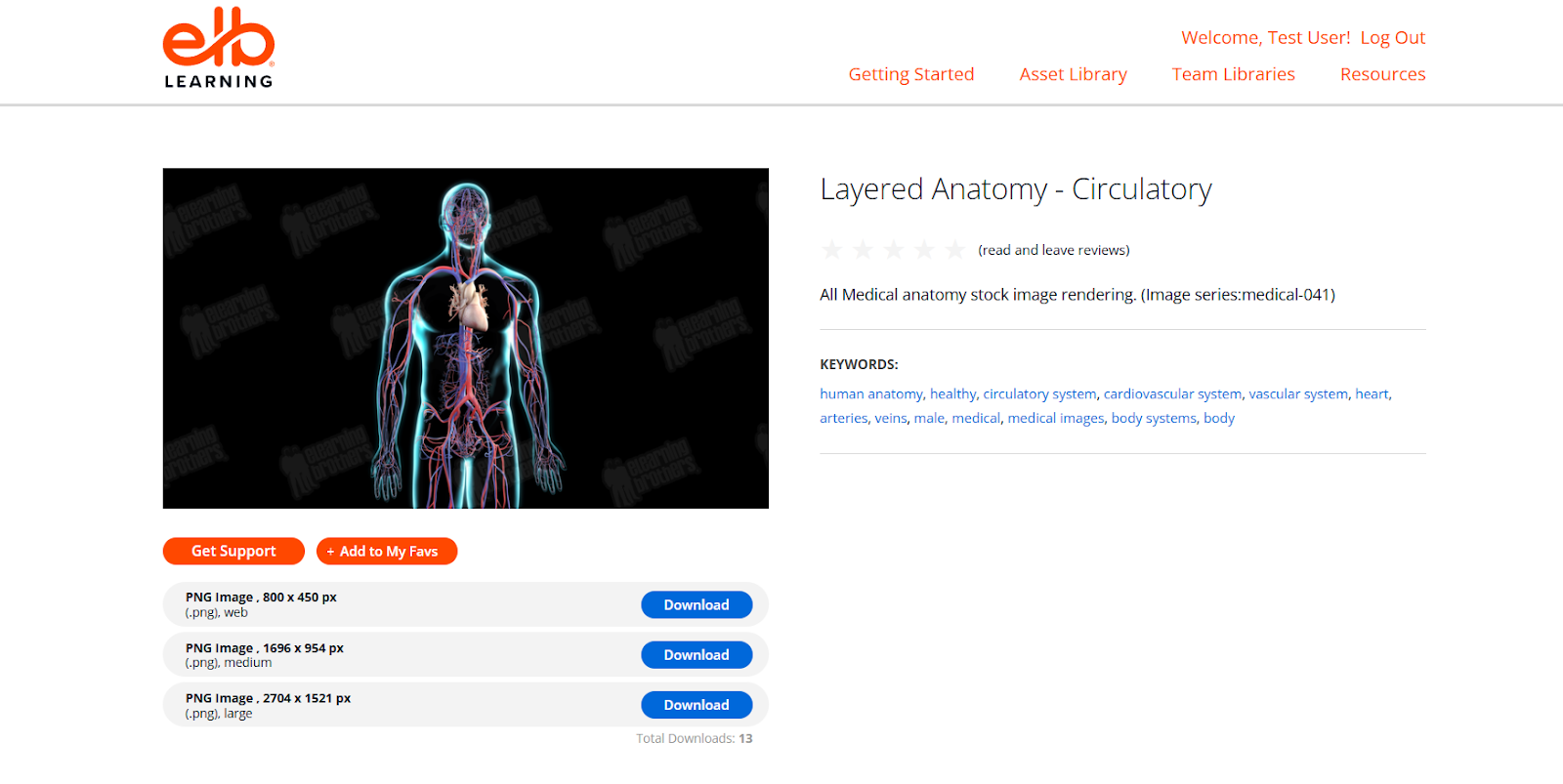
Overview
The Medical Images Library within the Asset Library provides a specialized collection of high-quality medical visuals, including anatomical illustrations, healthcare scenarios, and clinical imagery. These assets are designed to support medical, healthcare, and compliance training by improving clarity, accuracy, and engagement.
This guide explains how to access, search, filter, preview, and download medical images effectively.
What This Covers
This section provides a structured guide to discovering and using medical images efficiently, along with key topics including
Accessing the Medical Images Library
To access the Medical Images Library:
- Open the Asset Library.
- Navigate to the Medical Images Library from the main menu.
You will be directed to a page displaying medical categories and image collections.
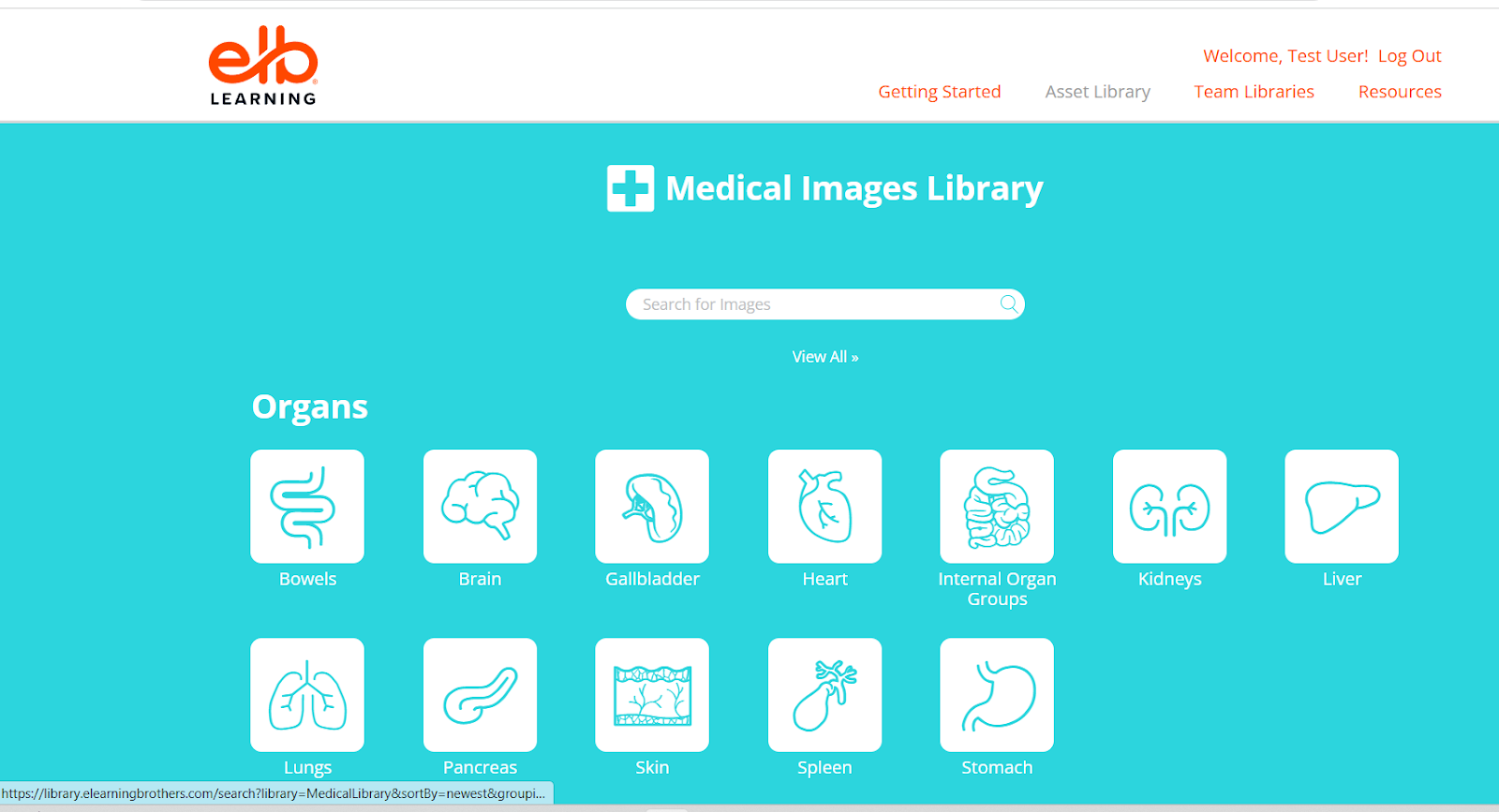
Searching for Medical Images
You can search for medical images using the Search Bar.
Steps:
- Enter relevant keywords such as:
- anatomy
- heart
- respiratory system
- hospital
- patient care
- Browse the search results.
- Select an image to preview its details.
Using accurate medical terminology improves search results.
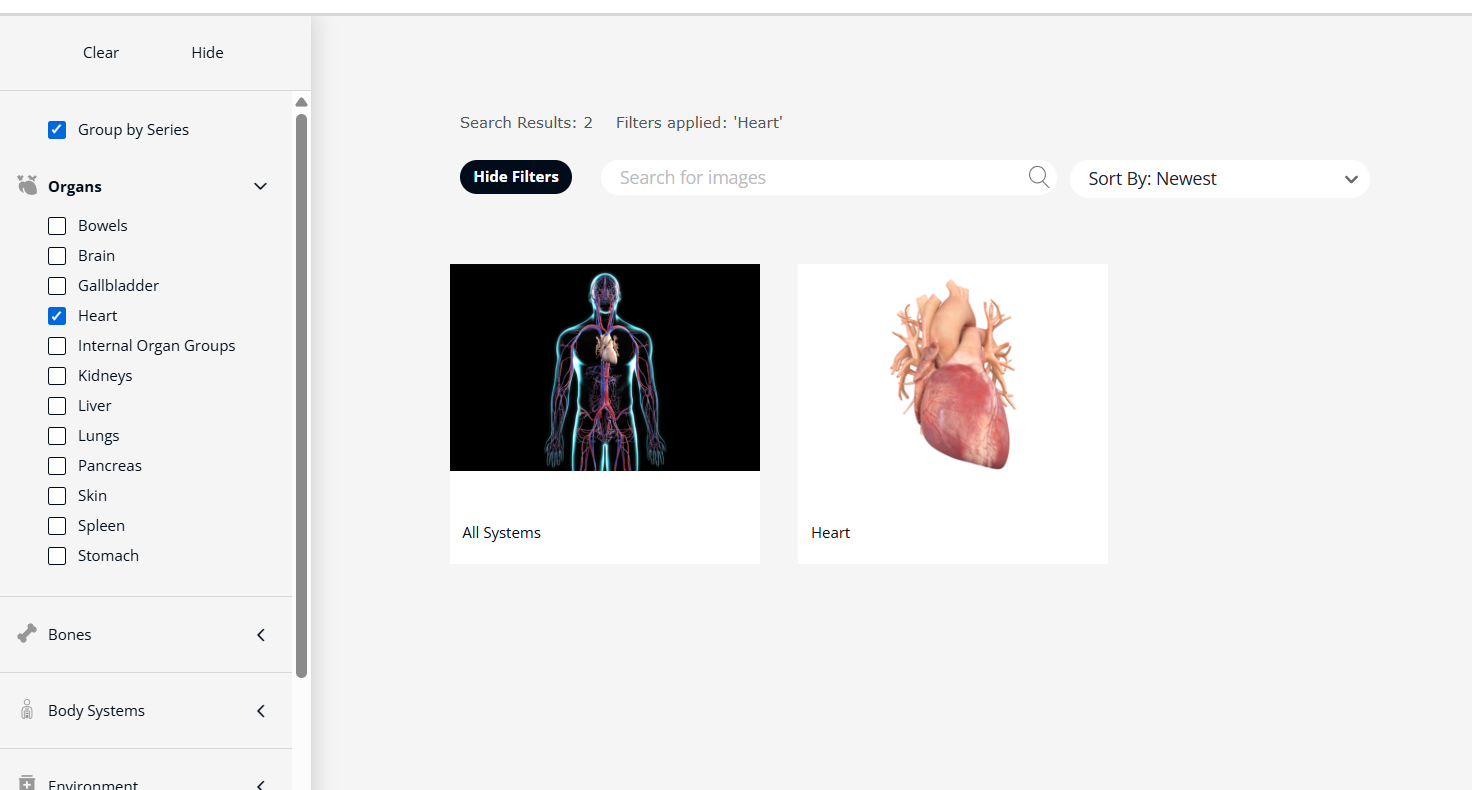
Using Filters for Medical Image Search
Filters help refine search results and locate specific medical visuals.
Common Filters:
- Category: Anatomy, Healthcare, Clinical, Equipment
- Body System: Cardiovascular, Nervous, Respiratory, etc.
- Image Type: Illustration, Real Image, Diagram
- Orientation: Landscape or Portrait
Best Practice:
Use a combination of filters (e.g., Anatomy + Cardiovascular System) to find precise medical images.
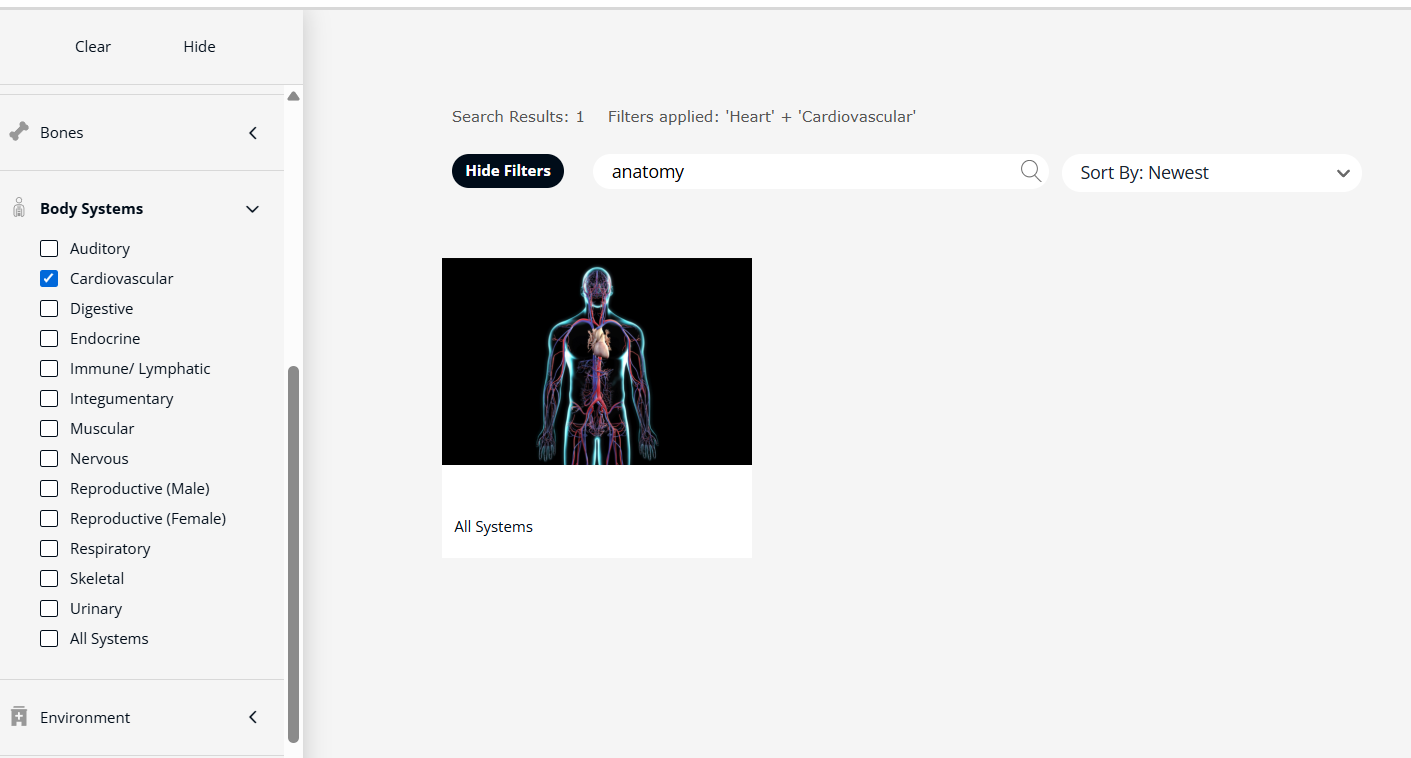
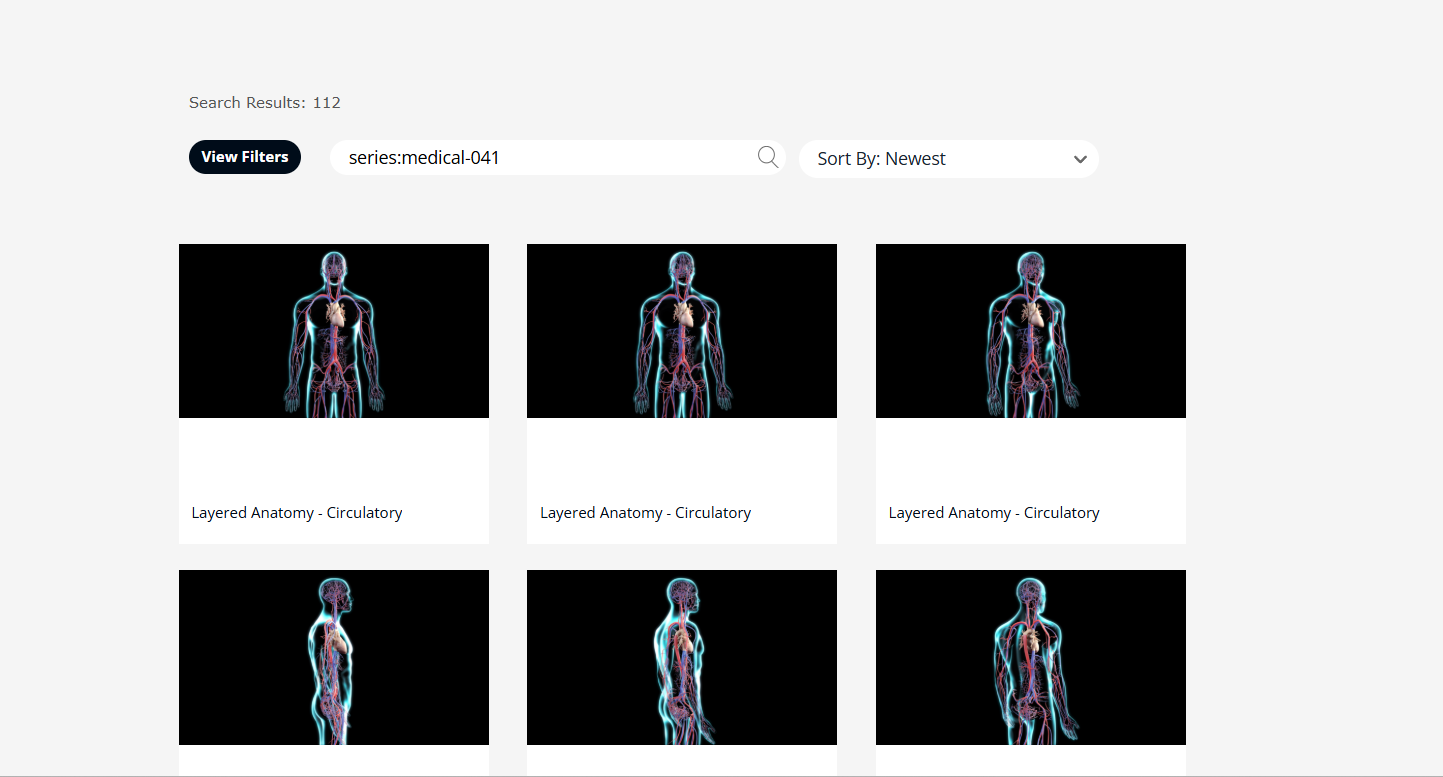
Previewing Medical Images
Before downloading, you can preview images to ensure they meet your requirements.
Steps:
- Click on an image.
- View the preview and available variations.
- Check:
- Image clarity and quality
- Accuracy of medical representation
- Relevance to your content
Previewing ensures the image is appropriate for your training material.
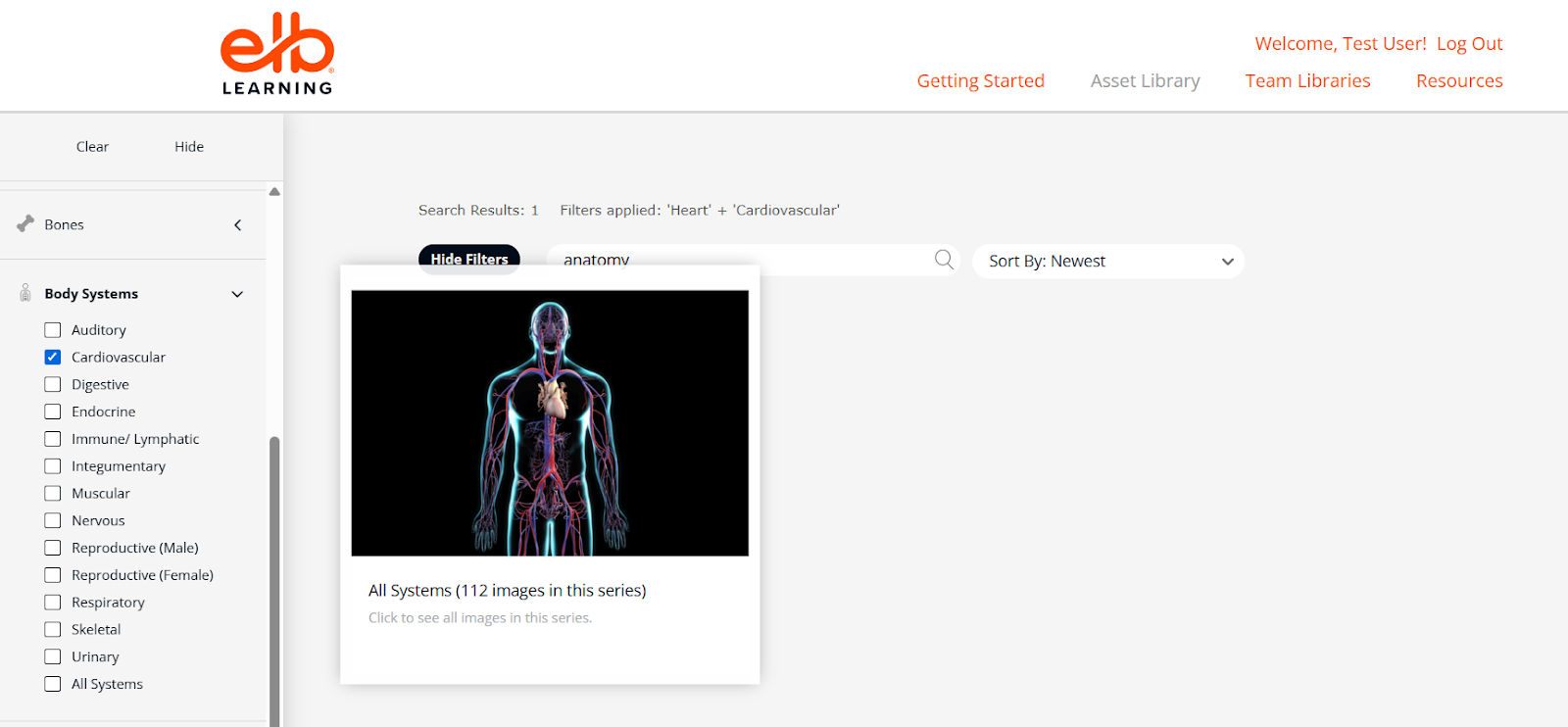
Downloading Medical Images
To download an image:
- Open the image preview page.
- Click the Download button.
- Save the file to your computer.
- Insert the image into your authoring tool or project.