![IntranetHeader_Logo.png]](https://knowledgebase.elblearning.com/hs-fs/hubfs/IntranetHeader_Logo.png?height=40&name=IntranetHeader_Logo.png)
March 28, 2022
Edit Learners
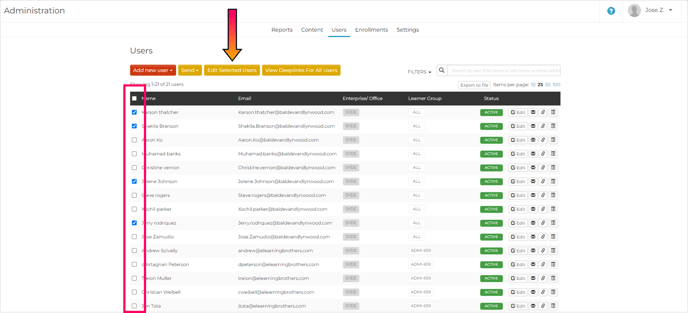
Step 1: Select Learners
Navigate to the “Users” tab of the Admin Portal. Select the learners you wish to edit by selecting the box next to their name. You can also select all users on a page by selecting the box next to the “Name” table heading. Then select “Edit Selected Users”.
Step 2A: Edit Fields
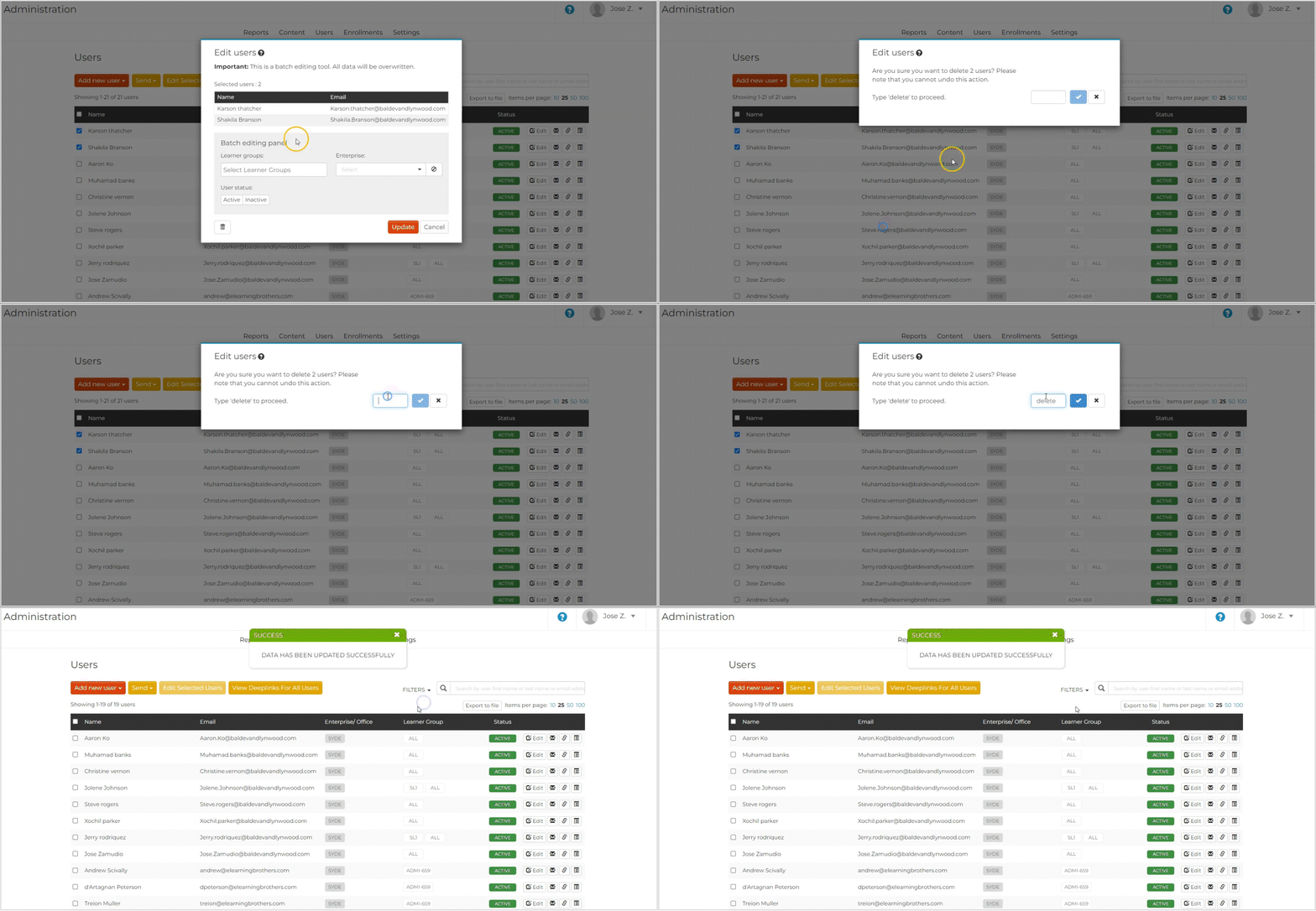
In the popup window, change the fields (learner group, enterprise, office, or active status) you wish to edit.
Caution: These fields will replace rather than add to the existing information for these learners. If you wish for these users to retain some information such as a learner group they have already been assigned to, be sure to add that information as you edit the fields.

Related: To learn more about learner groups, visit Creating, Assigning, and Removing Learner Groups. To learn more about enterprises, visit Enterprise IDs.
Step 2B: Delete Learners
To delete learners, select the trashcan icon. In the new popup window, type “delete” in the text field and select the checkmark button to delete the learners.
Step 3: Update Learners
After editing learners, select the “Update” button to update the learners.
Note: If you do not wish to save your changes, select “Cancel”.
