![IntranetHeader_Logo.png]](https://knowledgebase.elblearning.com/hs-fs/hubfs/IntranetHeader_Logo.png?height=40&name=IntranetHeader_Logo.png)
Note from the Product Manager
At Rehearsal, our commitment is to iteratively enhance your experience by introducing new features that align with evolving technologies. As a result, the guide you are about to read may differ in appearance or functionality from the current version of Rehearsal. We appreciate your patience as we work diligently to update our product documentation.
If you are running into specific issues, feel free to reach out to support@elblearning.com
April 22, 2022
Written Guide: Step by Step
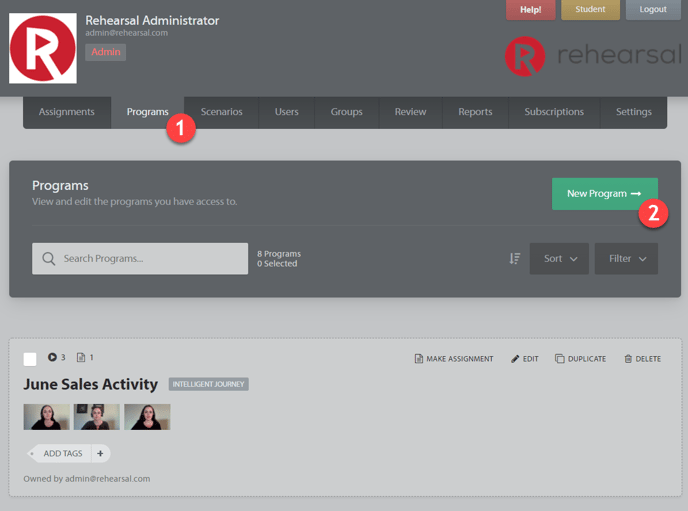
Step 1: Programs Tab
Begin by clicking on the Programs tab.
Step 2: Programs Tab
Click on New Program.
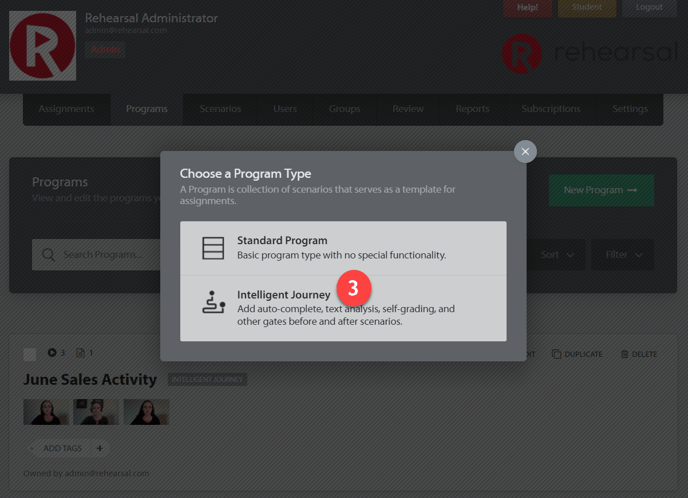
Step 3: Select Option
Click on Standard Program
Step 4: Title
Title the Program.
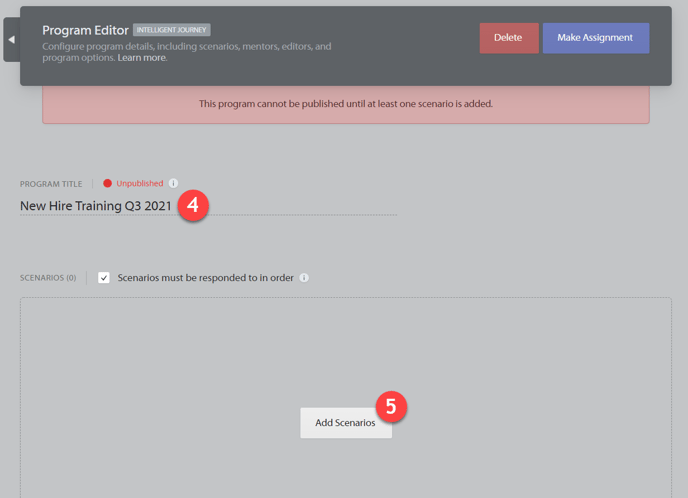
Step 5: Add Scenarios
Add Scenarios to the Program by clicking on Add Scenarios.
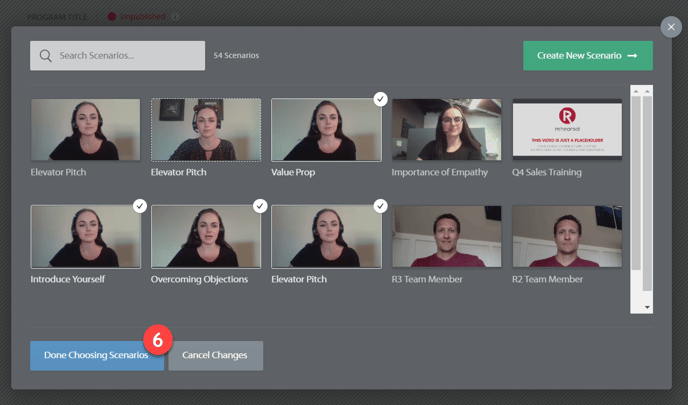
Step 6: Finalize Scenario Selection
Select the Scenarios you'd like to use in this Program, then click Done Choosing Scenarios. If you need to create a new Scenario, you can click on Create New Scenario. To learn how to create Scenarios, please refer to the How to Create a Scenario article here.
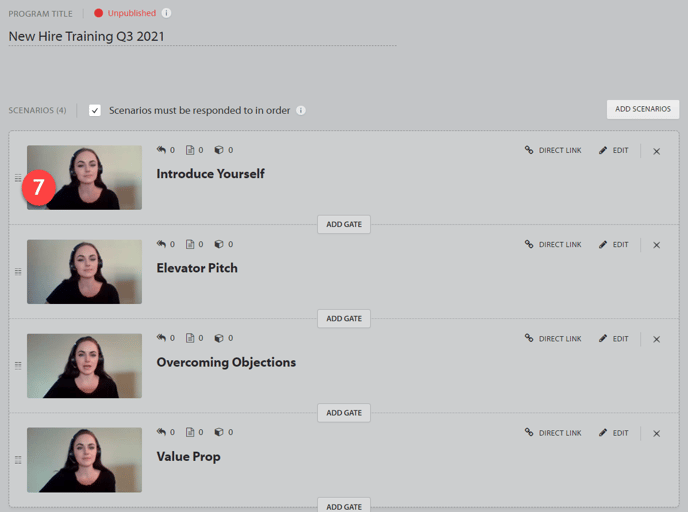
Step 7: Finalize Scenario Selection
You can rearrange the order in which the Scenarios appear by clicking and holding on the icon to the left of the Scenario video thumbnail and then dragging to the position you'd like it to be in.
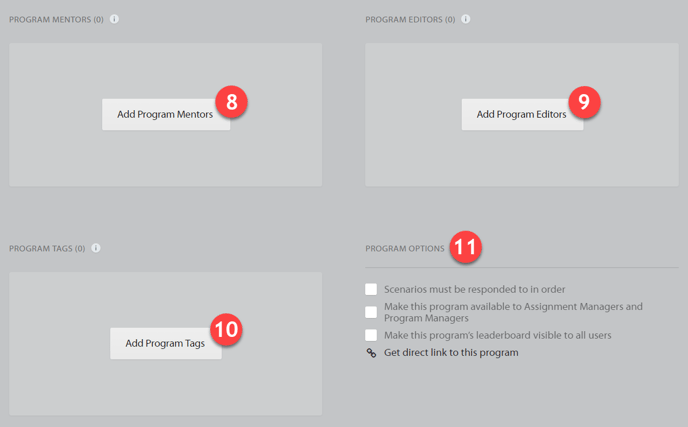
Step 8: Mentors
Next, you can add Program Mentors.
Step 9: Editors
You may also add Program Editors.
Step 10: Tags
You can add Program Tags.
Step 11: Program Options
Under Program Options, you can make changes to the Program settings such as requiring Scenarios to be responded to in order and making the Leaderboard public to all users in your Rehearsal instance.
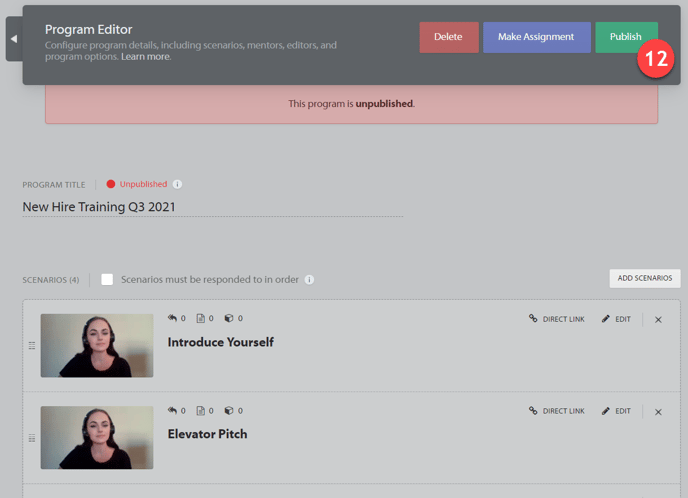
Step 12: Publish
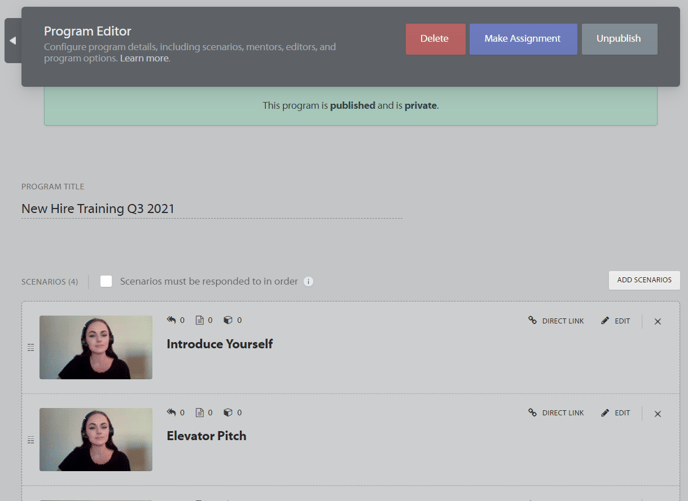
Once you have finished creating the Program, scroll up to the top of the page and click Publish.