![IntranetHeader_Logo.png]](https://knowledgebase.elblearning.com/hs-fs/hubfs/IntranetHeader_Logo.png?height=40&name=IntranetHeader_Logo.png)
Note from the Product Manager
At Rehearsal, our commitment is to iteratively enhance your experience by introducing new features that align with evolving technologies. As a result, the guide you are about to read may differ in appearance or functionality from the current version of Rehearsal. We appreciate your patience as we work diligently to update our product documentation.
If you are running into specific issues, feel free to reach out to support@elblearning.com
June 5, 2022
In this article, you will learn how to provide a Final Review to a Student response. The Final Review is the step in the process where you are grading the Student's response. At this point, you may have already prompted the student and you are now ready to grade their submission.
Step 1: Review Tab
Click the Review tab on the Administrative side of Rehearsal to view Student submissions.
Step 2: Locate Response
Locate the Student Response that you would like to view. You may use the drop-down menus to filter your search, as well as search for Student by email. Click the response you would like to view to open the conversation thread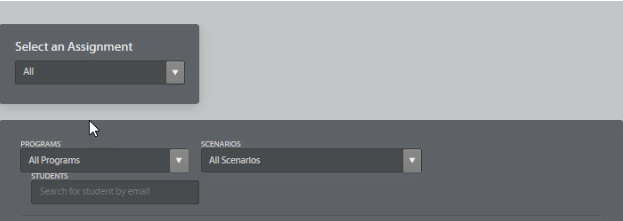
Step 3: Review Response
Click play on the Student response to watch and review.
Step 4: Provide Feedback
Click on Submit Final Review to grade and provide feedback.
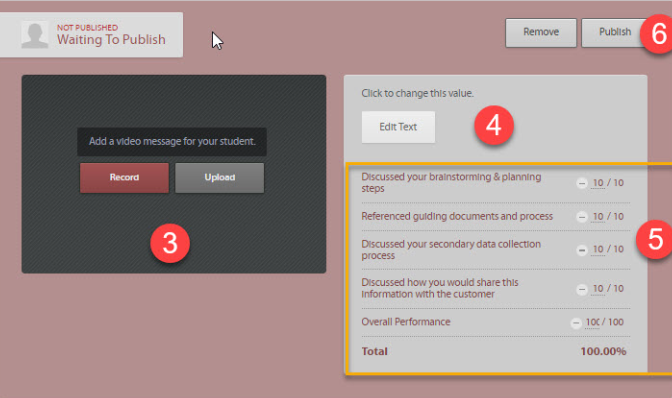
 3. Record or Upload your feedback and coaching to the Student’s response.
Step 6: Additional Feedback
Add additional feedback by clicking on Edit Text.
Step 7: Adjust Criteria
Click on the minus (-) or plus sign (+) to assign a numeric score for the given criteria
Step 8: Publish
Click Publish when complete.
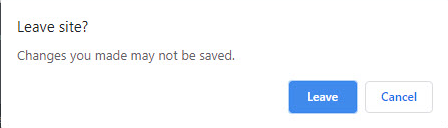
Note: Failure to click on Publish will leave the conversation open. When you leave the conversation you will receive an error message.
Work in Progress
Watch this video on how to provide a final review: