![IntranetHeader_Logo.png]](https://knowledgebase.elblearning.com/hs-fs/hubfs/IntranetHeader_Logo.png?height=40&name=IntranetHeader_Logo.png)
Lectora Online and Desktop
Docebo preliminary steps
To send the published Lectora project to Docebo as Training Material, gather the following information from your Docebo account: Server URL, Client Id, Client Secret, User Id, and User Password.
Lectora Desktop preliminary steps
- Add the Docebo details to Lectora. This step only needs to be done one time.
- Launch Lectora, then open preferences by going to the menu item
File > Lectora Preferences > Docebo. - Enter all fields and press OK

Lectora Online preliminary steps

- First, check with your company’s Org Admin who manages your Lectora Online account to confirm that the correct details have been entered for your organization. Org Admins may add or update this information in the Org Settings found in the left-hand menu. Contact Customer Solutions if you need additional help.
-
Add the Docebo details to Lectora Online.
-
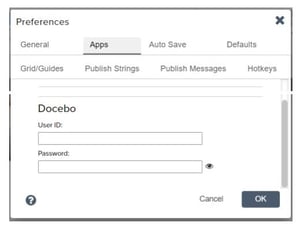
- Login to your Lectora Online account, then open preferences by going to File > Lectora Preferences > Apps.
- Scroll down to Docebo.
- Enter your User ID and Password and press OK to save.
Lectora Publishing
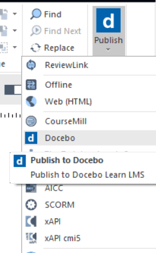
- When ready to publish the Lectora project, click on the Publish button and select Docebo.
- Make any SCORM or HTML option changes, then press Publish.
- Once publishing is complete, click the Send to Docebo or Send Project button. This will initiate the upload to your Docebo account.
.jpg?width=688&height=516&name=ELB%20Learning%20Authoring%20(1).jpg)