![IntranetHeader_Logo.png]](https://knowledgebase.elblearning.com/hs-fs/hubfs/IntranetHeader_Logo.png?height=40&name=IntranetHeader_Logo.png)
June 10, 2022
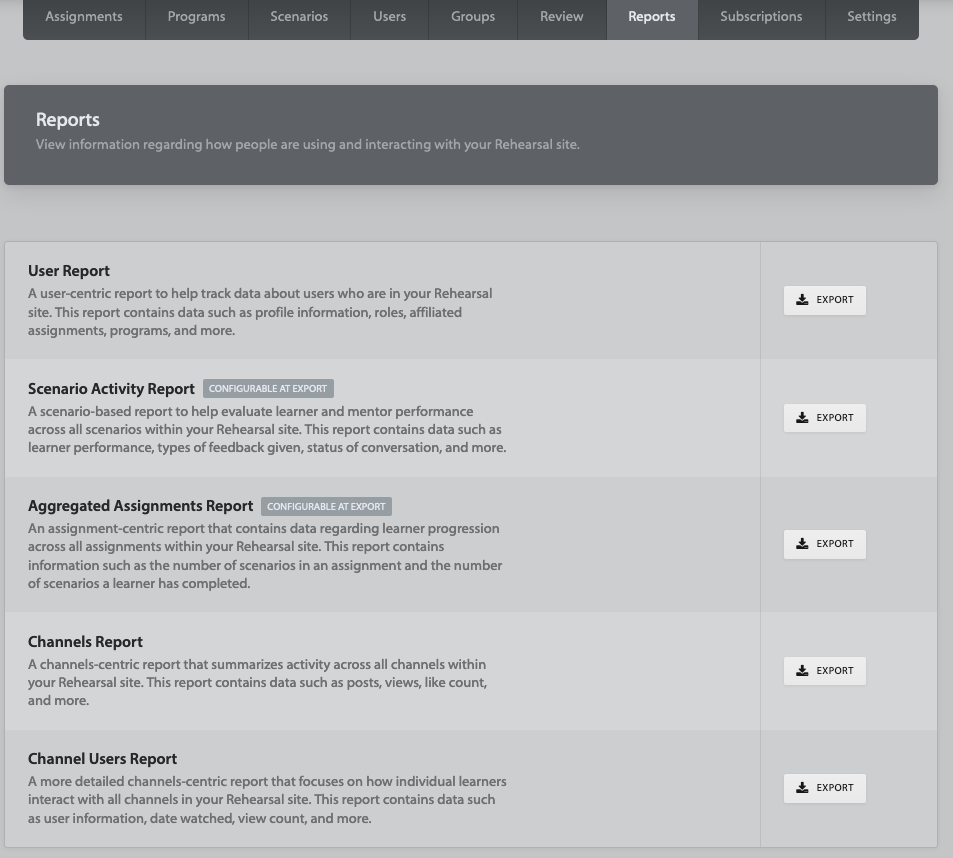
Administrators have access to data exports for Users, progress of Assignment, individual Scenario, Channel activity and active Channel Users.
Step 1: Reports Tab
To access this data, click on the Reports tab from anywhere in the Admin view:

Step 2: Select Report
You will then see the following screen with all available Report export options:
After clicking on an "Export" button, the button will indicate the system is generating your export:

The result will be an Excel file (.xlsx type) available for download via your web browser.
Step 3: Additional Parameters
Two reports require additional selections before download.
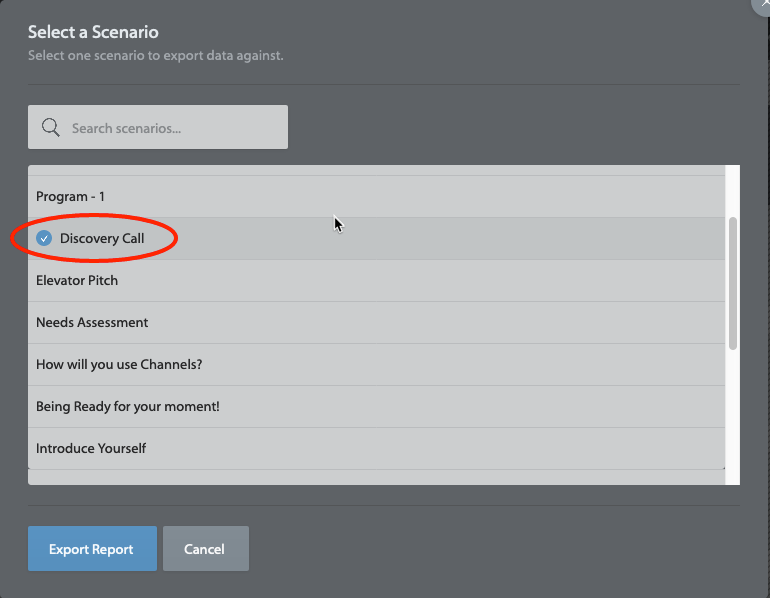
The Scenario Activity Report will ask you to select the scenario on which to report; selecting a scenario will look like this (note the blue check-mark):
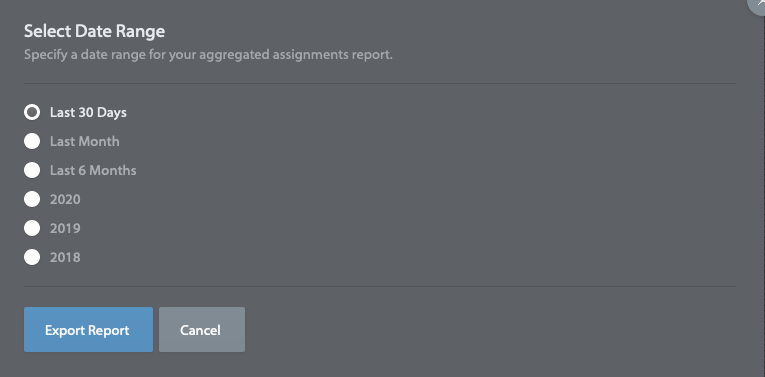
The Aggregated assignment reports will ask the historical date range for which you'd like to have included in the report: