![IntranetHeader_Logo.png]](https://knowledgebase.elblearning.com/hs-fs/hubfs/IntranetHeader_Logo.png?height=40&name=IntranetHeader_Logo.png)
November 17, 2021
Uploading Youtube Video
Step 1: Add New
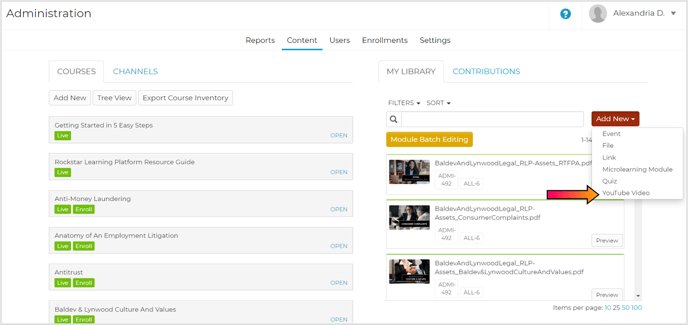
Navigate to the Content tab on the Admin portal. Select the “Add new” button and choose “YouTube Video” from the dropdown.
Step 2: Complete Details Page
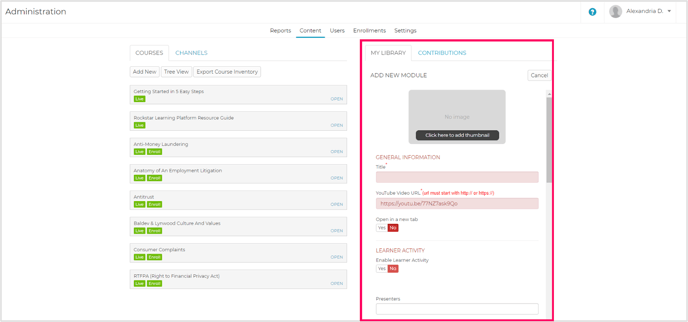
Fill out relevant fields on the module Details page. The only required fields for YouTube Video Modules are the Title and YouTube Video URL.
Note: The URL must include “https://” or “http://”.
Caution: Though the learner group field is not required, the module must be assigned to a learner group to appear on the user page.
Related: For more information on the general fields on the Details page, visit What are the Fields in the Module Upload Details Pages?
Step 3: Publish
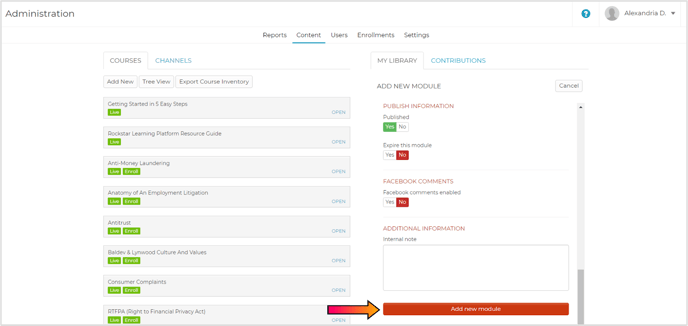
Select “Add new module” to create the module.
Step 4: Preview
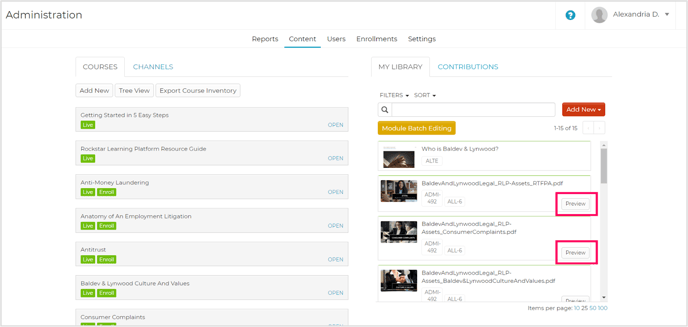
If you wish to preview a published module, locate the module in the “My Library” tab. Select the “Preview” button and the module will open in a new tab.
Note: Only video, audio, SCORM, PDF, link, and YouTube modules can be previewed.
Reporting
If users play the YouTube video in a new window, completion of the module will trigger on the user's click. If users play the YouTube video in the Rockstar Learning Platform, completion will trigger when the video is 95% watched. Users will not be able to fast forward to force completion if the video is opened in the Rockstar Learning Platform.
Editing YouTube Links
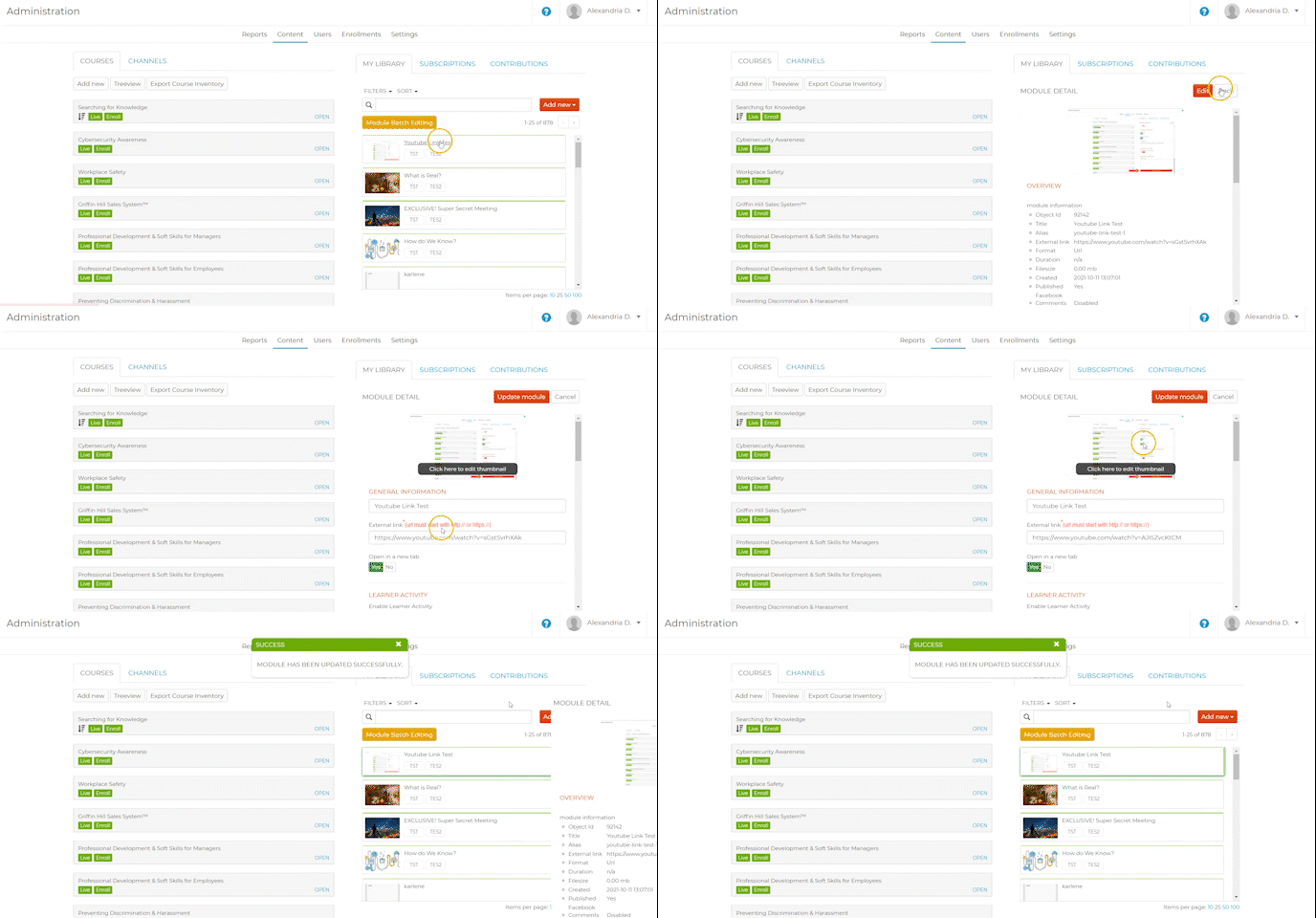
In the Content tab of the Admin portal, select the module you wish to edit. Select the “Edit” button to edit all fields on the Details page, including the URL. Select “Update module” to save your changes.
Note: By updating the URL, you can update the video to a new version while still keeping the same reporting, learner groups, settings, etc. of the previous video module.