
Release Date: March 24, 2026
Release Version/Details: v26.03.3 - Improved Camera & Microphone Permissions UX
Summary
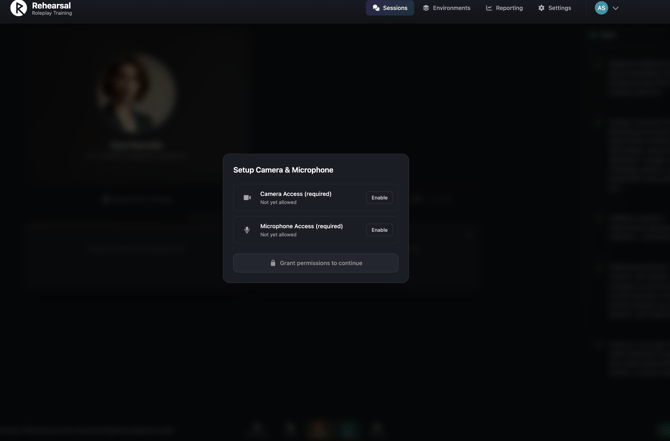
Camera and microphone permissions handling has been significantly overhauled across desktop and mobile. A new unified permissions modal replaces the previous separate desktop/mobile flows, learners can now switch devices mid-session without restarting, and sessions configured for audio-fallback mode handle the camera gracefully — letting learners begin with mic only and optionally add camera later.
Previously, permission prompts were easy to miss, desktop and mobile had duplicated UI logic, and there was no way to switch input devices during a session. These improvements make the permissions experience clearer, more consistent, and more resilient.
Features & Enhancements
Unified Permissions Setup Modal
- Single shared component: A new PermissionsSetupModal is used by both desktop and mobile, replacing two separate duplicated flows and removing ~90 lines of redundant logic from MobileReadyView.
- Permission state awareness: The modal checks existing browser permission state on mount, avoiding unnecessary prompts when access has already been granted.
- Per-permission status: Each permission (camera, microphone) shows its individual status — granted, denied, or pending — with retry support.
- Contextual primary action: The primary call-to-action adapts based on session mode and permission state, showing Begin Session, Start Session, or Continue with session as appropriate.
Camera Access Blocked Modal
- Dedicated blocked-access guidance: A new CameraAccessBlockedModal appears when camera access is blocked at the browser or OS level, with clear instructions for re-enabling it via browser site settings.
In-Session Device Switching
- Mid-session device switching: Learners can now switch their active microphone or camera during a session without ending or restarting it. A Settings popover in the session bottom bar lists all available audio and video input devices, and selecting one immediately switches the active recording source.
Graceful Audio-Fallback Mode
- Camera prompt deferred: In fallbackToAudio mode, the camera permission prompt no longer fires automatically on page load.
- Mic-only start: Learners can begin the session with microphone only, with a "Continue with session" option once mic access is granted.
- Optional camera add-on: If the learner later enables camera via the Settings popover or permission modal, the media recorder re-initializes to include video seamlessly.
- Audio-only visual state: When recording audio only, a visual placeholder with the learner's name badge is shown, matching the AI avatar panel layout.
Bug Fixes
- Session start button stuck on error: If session initialization failed, the "Begin Session" button was permanently disabled. A try/catch now resets the loading state on failure.
- Dead code removed: reinitializeMediaRecorderWithVideo() in RealtimeSessionManager was an unreachable duplicate and has been removed.
- Logger consistency: Two console.error calls in SessionEditor and DesktopSessionEditor were replaced with logger.error.
- O(n²) device label lookup fixed: Device label fallbacks in BottomNavBar used Array.indexOf() inside .map(). Fixed to use the map index parameter directly.
Improvements
- Stable device ID getter: The getDeviceIds function passed to useRealtimeSession is now wrapped in useCallback with an empty dependency array, preventing unnecessary re-renders.
- i18n: 9 new translation keys added across all 14 supported locale files (AI Character, Audio only, Allowed, Continue with session, Description, Ready, Sessions, Settings, Stop Recording).
Release Date: March 19, 2026
Release Version/Details: v26.03.2 - Roleplay Manager Dashboard v2
Summary
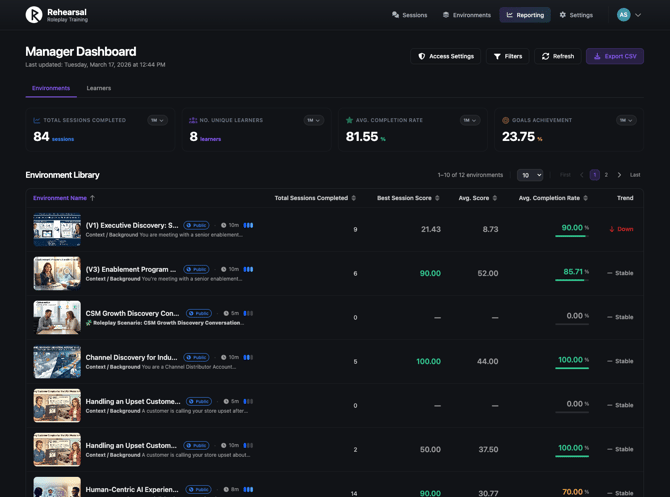
This release delivers a set of enhancements to the Roleplay Manager Dashboard, focused on data usability, access control, and export capabilities. Managers can now sort any table column, export dashboard data to CSV, and share dashboard access with non-admin users through a structured permission model. Also included are UI updates for the headers, environment listing, and pagination to reflect the new UI for consistency.
Features & Enhancements
Table Sorting
Interactive column sorting across all five dashboard table views.
- Environments Tab: Sort by Environment Name, Total Sessions, Best Score, Avg. Score, or Avg. Completion Rate. Default: Environment Name A–Z.
- Learners Tab: Sort by Learner Name, Total Sessions, Environments Attempted, Avg. Score, or Last Active Date. Default: Last Active Date (newest first).
- Drill-Down Tables: Sort by Learner/Environment Name, Sessions, Best Score, Avg. Score, or Completion Rate. Default: Total Sessions (high to low).
- Session Lists: Sort by Session Date, Score, Completion Status, or Duration. Default: Session Date (newest first).
CSV Export
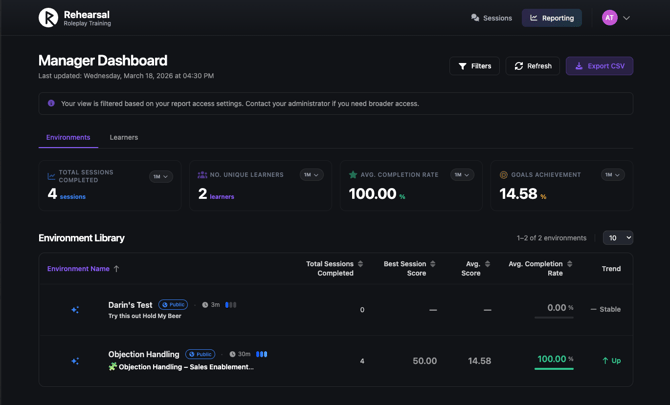
A single Export button above the Environments/Learners tab bar generates a flat CSV report — one row per learner per environment.
- Exported columns: Environment Name, Learner Name, Total Sessions Completed, Best Goal Score, Avg. Goal Score, Avg. Completion Rate, Latest Session Date.
- Respects active filters and the user's permission scope.
- If no data matches filters/permissions, a header-only CSV is produced.
User Access Permissions
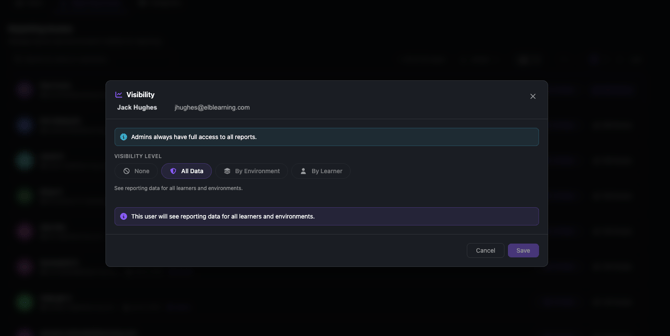
Admins can now grant non-admin users access to the dashboard through a three-tier permission model. Each user is assigned exactly one type:
- Full Access: Full dashboard visibility, minus the ability to manage other users' permissions.
- Environment-Based Access: Restricted to assigned environments and learners with sessions in those environments. The Learners Tab is hidden for this user type.
- Learner-Based Access: Restricted to assigned learners across all environments. Metrics are scoped to the accessible learner set.
All permission enforcement is server-side; no client-side security reliance.
Access Level Column in Settings → Reports
Improves admin visibility over who has access to the dashboard.
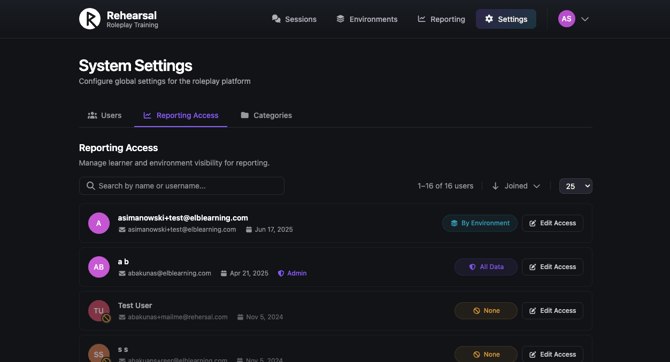
- Adds an Access Level column to the Settings → Reports user list, displaying one of: Full Access, Environment-Based Access, Learner-Based Access, or No Access — as color-coded badges.
- Adds Access Level to the Sort By dropdown with ascending/descending direction toggle.
- Sort state persists via session storage; performant with 1,000+ users.
Release Date: March 12, 2026
Release Version/Details: v26.03.1 - Audio-Only Recording for Roleplay
Summary
Roleplay Sessions now support audio-only recording, enabling learners in camera-restricted environments — such as shared workspaces or locations without webcams — to fully participate in and complete Roleplay Sessions using only a microphone.
Authors and Administrators can configure the recording mode per Environment: require video (the existing default), fall back to audio if a camera is unavailable, or require audio only. Audio responses are stored and play back correctly everywhere video responses are currently reviewable.
This release also fixes a bug where learners could enter a session before granting camera and microphone permissions, which would leave them unable to record and unable to complete the session.
Features & Enhancements
Admin Configuration
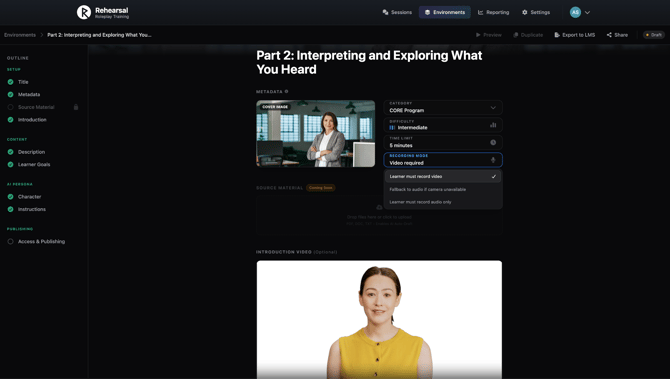
- Recording Mode setting: A new "Recording Mode" option is available in the Environment editor with three values:
- Learner must record video — existing default behavior, unchanged
- Fallback to audio if camera is unavailable — attempts camera first; switches to microphone-only if camera access is denied or unavailable
- Learner must record audio only — camera is never requested; microphone only
Session Recording
- Audio-only recording: When the environment is configured for audio-only, the session UI reflects this — the video preview is replaced with an audio waveform indicator and only microphone access is requested from the browser.
- Automatic audio fallback: In fallback mode, if camera access is denied, the session seamlessly switches to audio-only recording without requiring the learner to restart.
- Permission fix: Learners can no longer advance into a session before granting the required permissions (camera + mic, or mic only). A clear, actionable message is shown if permissions are missing or denied.
Audio Playback
Audio-only responses can be reviewed in every location where video responses are currently supported:
- In-session response history (active session)
- End-of-session summary timeline
- Learner session history timeline
- Reports drill-down timeline
Release Date: February 19, 2026
Release Version/Details: v26.02.5 - Roleplay Avatar Greeting
Summary
Roleplay sessions can now start with an optional AI Avatar greeting — a predefined opening line spoken by the AI persona before the learner takes their first turn. Authors configure this in Conversation Settings per Environment.
This supports more realistic scenarios (e.g., inbound customer call, prospect reaching out) and removes the “who goes first?” ambiguity at session start. The greeting plays only on initial session start, not on resume.
Session time limits have also been increased to 30 minutes.
Features & Enhancements
Author Experience
- AI takes the first turn: Toggle in Conversation Settings (via the language/role selector) to enable avatar greeting.
- Opening line: Text field for the exact line the AI will speak when enabled. Required when the toggle is on; settings persist with the Environment.
Learner Experience
- Avatar speaks first: When a greeting is configured, the AI Avatar speaks the opening line at session start, then control passes to the learner.
- TTS & language: Greeting is rendered via TTS in the session’s configured language (multilingual support).
- Resume behavior: Greeting plays only on initial session start, not when resuming.
Minor updates
- Session time limit: Increased to 30 minutes.
- Leaderboard: Hidden. The Leaderboard was never fully implemented (only a “coming soon” state and a dialog for submitting ideas); it is now removed from the UI.
Screenshots
Environment configuration for the avatar greeting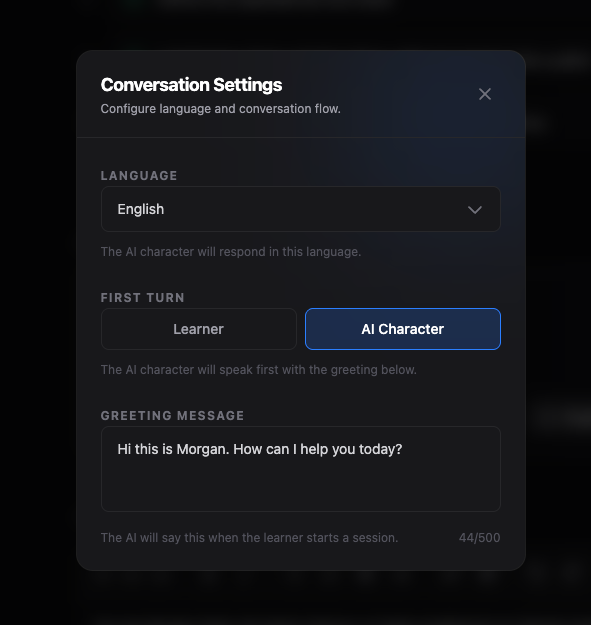
30 minute time limit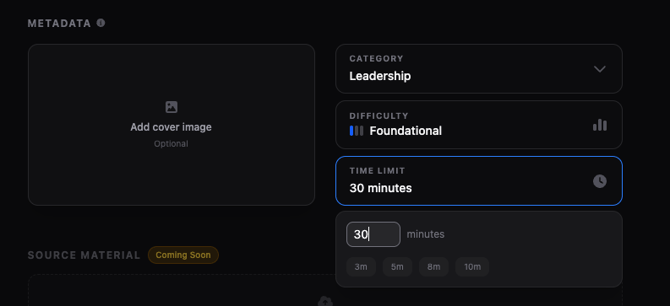
Release Date: February 19, 2026
Release Version/Details: v26.02.4 - Roleplay Multilingual Support
Summary
This release introduces comprehensive multilingual support for Roleplay, enabling learners worldwide to practice skills in their native language. Organizations can now create Roleplay Environments in 12+ languages, with AI avatars that converse naturally, provide feedback, and deliver session analysis entirely in the configured language. The Roleplay platform UI is also fully localized to match each learner's language preference.
Features & Enhancements
Environment Language Configuration
- Language Setting for Environments: Authors can configure the language for each Roleplay Environment during authoring (defaults to English)
- Native Language Authoring: Create Environment content (descriptions, scenarios, AI persona instructions) entirely in the target language
- Language-Specific AI Conversations: AI avatars converse fluently in the configured Environment language throughout the entire session
- Natural Speech Generation: Text-to-speech audio is generated in the Environment's configured language with appropriate voice characteristics
- Optimized Transcription: Speech recognition is configured to match the Environment language for improved accuracy
Localized Feedback & Analysis
- Real-Time Feedback: In-session coaching and feedback delivered in the Environment's language
- Session Analysis: Post-session performance reports, grading, and AI evaluation provided in the Environment's language
- Consistent Experience: All learner-facing content (feedback, tips, analysis) maintains the same language throughout the session
UI Localization
- Fully Translated Interface: All Roleplay platform elements (navigation, menus, buttons, labels, instructions) localized to 12+ languages
- Automatic Language Detection: Roleplay UI automatically displays in the learner's preferred language setting from Rehearsal
- Independent Language Settings: UI language and Environment conversation language work independently (e.g., learner can view UI in Spanish while practicing conversations in French)
Supported Languages
Roleplay now supports 12+ languages aligned with Rehearsal's existing language support, including but not limited to:
- English
- Spanish
- French
- German
- Portuguese
- And additional languages supported by Rehearsal
Important Notes
- Separate Environments Required: Each language requires its own Environment (e.g., "Sales Training - English" and "Sales Training - Spanish" are separate Environments)
- No Automatic Translation: Environments must be authored directly in the target language; existing English content is not automatically translated
- Language Consistency: AI avatars maintain the configured language throughout the session and do not adapt to language mixing
- Backward Compatibility: All existing Environments automatically default to English and continue working without modification
Release Date: February 17, 2026
Release Version/Details: v26.02.3 - Roleplay LMS Integration
Summary
This release introduces SCORM package export for Roleplay Environments, enabling seamless integration with Learning Management Systems. Organizations can now export Roleplay practice sessions as SCORM-compliant packages and embed them in their LMS, with completion data and scores automatically synced back to the LMS grade book.
Features & Enhancements
SCORM Package Export
From the Environments tab, click on the export icon: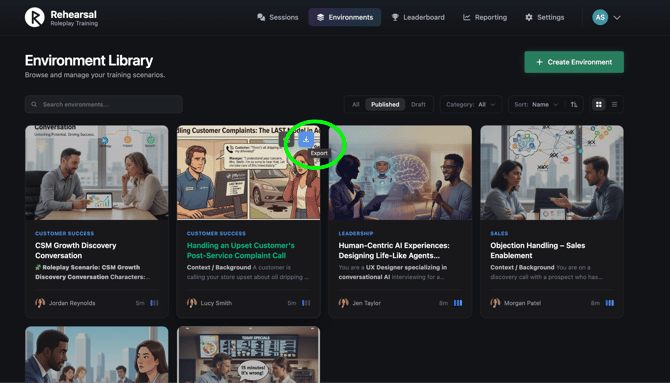
Or from the Environment Editor, click on "Export to LMS":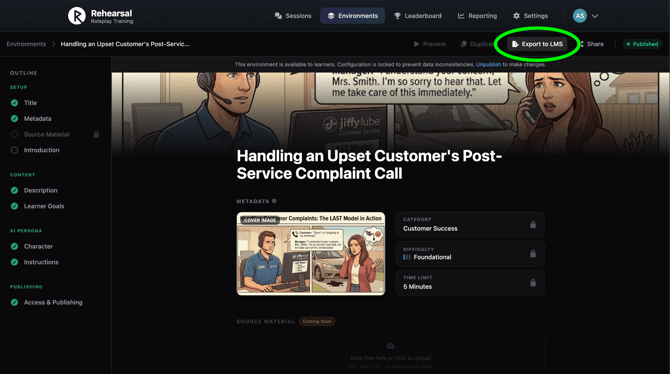
Both will bring up the "Create LMS Package" modal, below: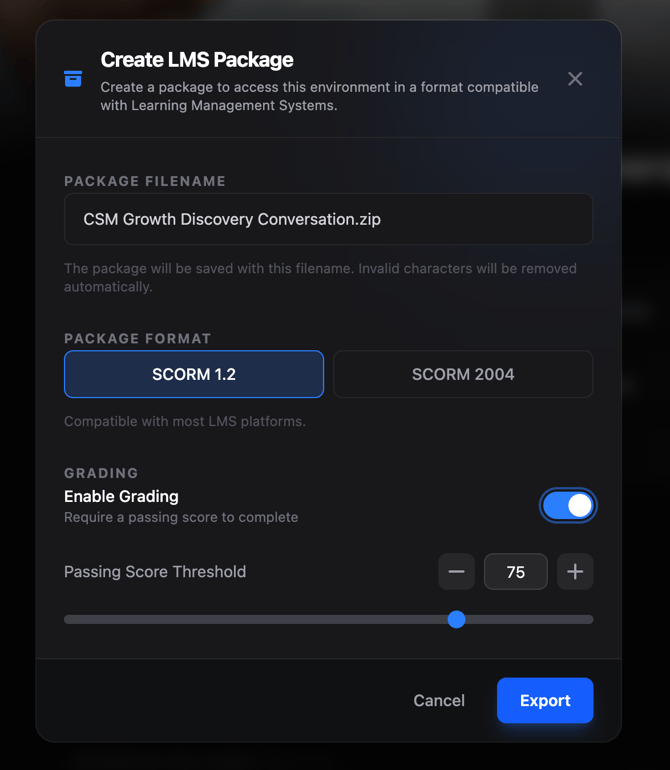
Features include:
- SCORM 1.2 & SCORM 2004 Support: Export Roleplay Environments in either SCORM format to ensure compatibility with your LMS platform
- Flexible Export Options: Export directly from the Environments list or from within the Environment editor via the "Export to LMS" button
- Configurable Package Settings:
- Customize package filename (defaults to Environment name)
- Choose between SCORM 1.2 or SCORM 2004 format
- Enable grading with configurable passing score threshold
- Automatic Grade Sync: Session completion status, scores, and time spent automatically sync to your LMS grade book
- Reduced Navigation for Learners: The Learner's Session omits any Roleplay navigation, so the learner can complete the Roleplay, receive grading and feedback, and retry or close the Session and return to the LMS.
Grading & Completion Tracking
- Optional Grading: Choose whether to enable grading for each exported package
- Passing Score Threshold: Set a minimum passing score (default: 75%) when grading is enabled
- SCORM 1.2 Lesson Status: Final state is 'completed' if grading is disabled, or 'passed' if grading is enabled and the passing score is reached (note: LMS platforms may display these statuses differently)
- SCORM 2004 Dual Status: Completion status is set to 'completed' once at least one turn is made (regardless of score); success status is set to 'passed' when the minimum passing score is reached
- Highest Score Reporting: Only the highest score from multiple attempts is reported to the LMS
Supported LMS Platforms
The SCORM packages are compatible with most Learning Management Systems that support SCORM 1.2 or SCORM 2004 standards, including:
- Canvas
- Moodle
- Blackboard
- CourseMill (SCORM 1.2 only)
- RLP
- SCORM Cloud
- And other SCORM-compliant platforms
Release Date: February 04, 2026
Release Version/Details: v26.02.1 Roleplay Manager Dashboard (Phase 2 Learners View)
Summary
Phase 2 of the Roleplay Manager Dashboard completes the dual-view navigation system by adding the Learners-first navigation flow. Managers can now choose to start their analysis by viewing all learners, then drilling down into individual learner performance across different Environments—providing a complementary approach to the Environments-first flow released in Phase 1.
Phase 1 Foundation: This release builds on Phase 1 (released January 8, 2026), which introduced the Environments-first navigation flow. Both navigation paths now work together to provide flexible entry points into learner performance data.
What's New in Phase 2
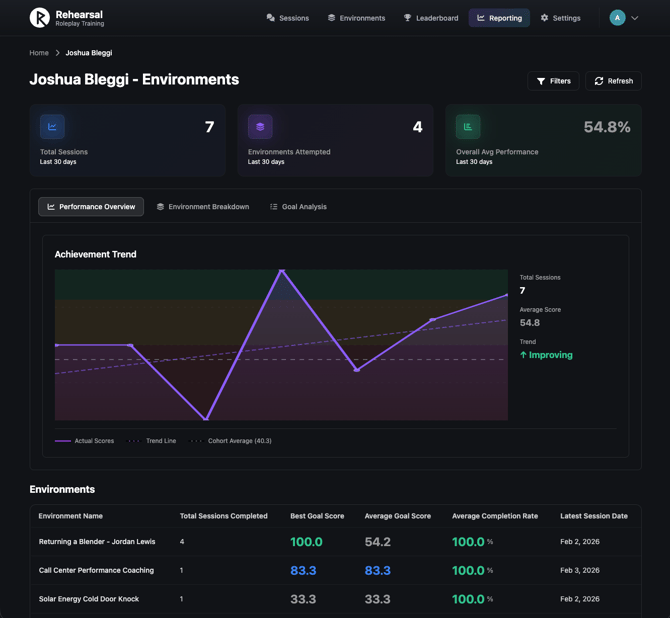
Learners Tab View
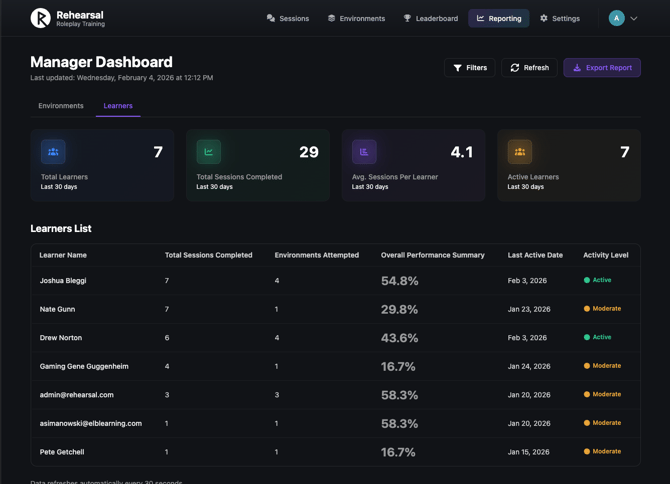
The new Learners tab provides an alternate entry point focused on individual learner performance:
-
Top-Level Summary Metrics - Dashboard-wide visibility into:
-
Total Learners with at least one completed session
-
Total Sessions Completed across all learners
-
Avg. Sessions per Learner showing engagement levels
-
Active Learners who completed sessions in the last 30 days
-
Key engagement metrics aggregated from real session data
-
-
Learners Performance List - Comprehensive table showing each learner with:
-
-
Learner name
-
Total Sessions completed across all Environments
-
Environments Attempted count showing breadth of practice
-
Overall Performance average score across all sessions
-
Last Active Date for recent engagement tracking
-
Activity Level Indicator showing sessions in last 7/30 days
-
Clickable rows to drill down into Environment details
-
Learner → Environments Drill-Down
Drilling down from a learner shows which Environments that individual has practiced:
- Learner Context Header - Quick reference showing:
- Selected learner's name
- Summary metrics for this learner (total sessions, environments attempted, overall average performance)
- Environments Performance List - Detailed view of each Environment the learner attempted:
- Environment name
- Total Sessions completed in this Environment by this learner
- Best Session Score achieved by this learner in this Environment
- Average Performance metrics for this learner in this Environment
- Latest Session Date showing most recent practice
- Clickable rows to view all sessions for this learner-environment combination
Dual Navigation Convergence
Both navigation paths now lead to the same session views, providing flexibility in how managers explore the data:
- Two Entry Points:
- Learners → Environments → Sessions (new in Phase 2)
- Environments → Learners → Sessions (from Phase 1)
- Consistent Session Detail View - Same comprehensive session experience regardless of navigation path taken:
- Complete transcript, audio/video playback
- AI feedback and assessment
- Performance metrics and goal achievement
- Timeline and conversation flow
- Context-Aware Navigation:
- Breadcrumbs reflect the path taken (Learners-first vs Environments-first)
- Back navigation returns to the appropriate previous view
- Session context shows both learner and environment information
- Filter Persistence - Time filters and selections are maintained when switching between Learners and Environments tabs
Release Date: January 29, 2026
Release Version/Details: v26.01.5 Roleplay Environments 1.5
Summary
Environment Editor 1.5 introduces a comprehensive redesign of the Roleplay platform with a modern two-column layout inspired by Notion-style editors, along with extensive UI polish and refinements throughout the entire Roleplay experience. This update transforms not only the environment creation and editing experience but also the Sessions and Environments catalog views, delivering a more professional, enterprise-ready interface across the board.
The redesigned editor features a left navigation sidebar for quick section access and a centered canvas for primary content editing. This release also introduces optional cover images for environments, updated card layouts throughout Sessions and Environments, refined header controls, and comprehensive read-only support for collaboration.
A key focus of this release is removing experimental UI elements—non-functional placeholder features that were previously added for demonstration purposes but misled authors about available functionality. By cleaning up this technical debt, modernizing the visual design, and establishing a solid foundational layout, Environment Editor 1.5 delivers a polished, professional experience while preparing the platform for more advanced AI-assisted authoring capabilities planned for version 2.0.
Features & Enhancements
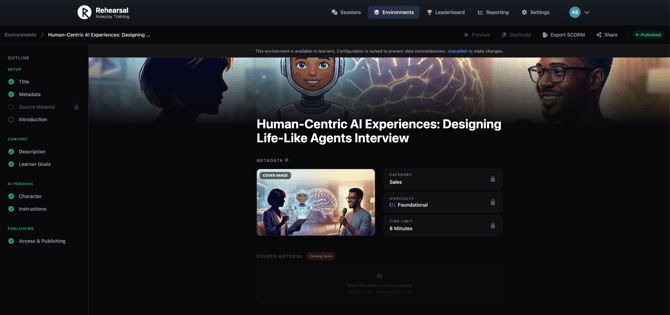
Two-Column Layout Architecture
The new editor introduces a clean two-column design that separates navigation from content editing, with configuration settings embedded inline within the canvas.
-
Left Navigation Sidebar: Provides an outline view of your environment structure with quick navigation to Title/Description, Media & Context, AI Character, Learning Goals, and Access & Permissions sections. Includes Source Docs link with count badge and Delete Environment action (creator and admin-only).
- Center Canvas: Houses all primary content editing with generous spacing and clear section hierarchy. Scrollable area keeps you focused on the content you're working on. Configuration settings are integrated directly into the canvas for a streamlined editing experience.
Enhanced Content Editing Experience
Streamlined editing interfaces make environment creation more intuitive and efficient.
- Ghost-Style Title Input: Large, clean title input with 4xl typography that feels like a document editor rather than a form field.
- Rich Text Description Editor: Description field with floating toolbar that appears on hover, providing quick access to bold, italic, and list formatting options. Clean, distraction-free editing surface.
- Cover Image Support: Optional cover image that can be added to any environment. When present, the cover image takes priority over video thumbnails for visual representation. This cover image is used consistently throughout the Roleplay platform—in the session catalog preview cards, at the top of the environment when viewing or editing, and in environment card listings.
- Media & Context Section: Dedicated area for uploading or recording intro videos. Includes collapsible "Video Transcript" accordion for organizing supplementary information.
- Inline Configuration Settings: Environment settings (category, difficulty, time limit) are integrated directly into the canvas flow for easy access without context switching.
- AI Character Editing: Character configuration including avatar, character name, description, voice settings, and AI instructions are accessible directly in the canvas. Conversation settings (language, first turn, opening line) are marked as "coming soon."
- Improved Learning Goals Management: Goals displayed as draggable checklist items with inline editing. Drag handles enable easy reordering, hover-to-reveal delete buttons keep the interface clean, and the "Add goal" button makes adding new objectives seamless.
- Access & Permissions Controls: Visibility settings (Private/Shared/Public), shareable link with copy button, and archive toggle are available directly in the canvas flow.
Roleplay Platform UI Polish
Comprehensive visual refinements across the entire Roleplay platform create a more polished, professional, enterprise-ready experience.
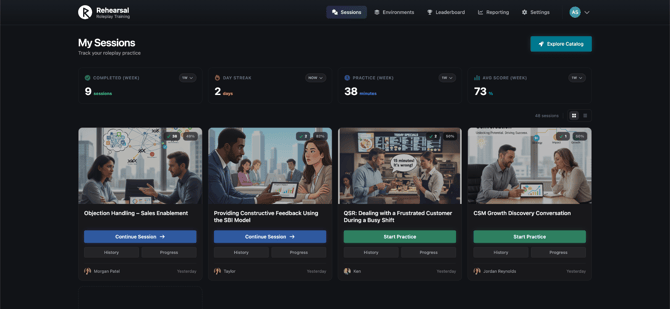
- Modernized Sessions Page: Updated card layouts with cleaner visual hierarchy, refined header with de-emphasized icons, and improved button and UI controls. Action buttons are more prominent and purposeful, while supplementary icons provide information without visual clutter.
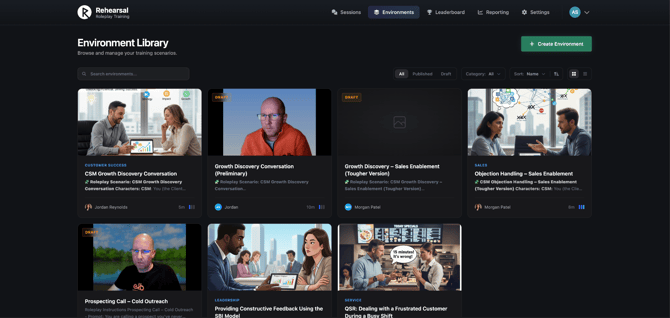
- Refined Environments Library: Updated card layouts showcasing cover images (when available) with consistent styling, improved typography, and better organized metadata. Cards now have a more polished, professional appearance suitable for enterprise environments.
- Improved Help & Guidance: Updated help popups throughout the platform provide clearer, more contextual assistance. Help content is better organized and more accessible without being intrusive.
- Enhanced Visual Consistency: Card layouts, button styles, typography, and spacing are now consistent throughout Sessions and Environments, creating a cohesive experience across the platform.
- Professional Visual Refinement: The overall UI has been refined to feel more polished and enterprise-appropriate, with attention to details like button states, hover effects, icon sizing, and visual hierarchy.
Release Date: January 8, 2026
Release Version/Details: v26.01.3 – Roleplay Manager Dashboard (Phase 1: Environments View)
Summary
The Roleplay Manager Dashboard provides team managers and admins with visibility into learner performance across Roleplay Environments and individual Session data. This first release focuses on the Environments-first navigation flow, enabling managers to quickly understand how their team is performing on specific skills and scenarios, identify coaching opportunities, and drill into learner details when needed.
Managers can now start with Environment-level summaries, drill down to see which learners have completed sessions in that Environment, view all sessions for a specific learner in that Environment, and access the complete session details—including transcripts, audio/video playback, and AI feedback—exactly as learners see them.
All insights are powered by real Roleplay Session data with no mocked values, ensuring accuracy and trust in the metrics displayed.
Features & Enhancements
Environments Tab View
The new Environments tab provides a comprehensive overview of all Roleplay Environments with real-time metrics:
- Top-Level Summary Metrics - Dashboard-wide visibility into:
- Total Sessions Completed across all Environments
- Number of Unique Learners active in Roleplay
- Average Completion Rate across all sessions
- Key performance metrics aggregated from real session data
- Environments List - Detailed table showing each Environment with:
- Environment name
- Total Sessions completed for that Environment
- Best Session score achieved in that Environment
- Aggregated performance metrics (average score, completion rate)
- Clickable rows to drill down into learner details
Environment → Learners Drill-Down
Drilling down from an Environment shows which learners have completed sessions in that specific skill/scenario:
- Environment Context Header - Quick reference showing:
- Selected Environment name
- Total Sessions
- Number of Unique Learners
- Goals Achievement
- Performance, Analytics, and Distribution - Aggregate view over all Learners who attempted this Environment:
- Best overall score, average completion rate, average sessions/learner, top performers
- Session distribution, completion rates
- Session engagement and improvement distributions
- Learners - Clickable rows to view all sessions by Learner, with summary statistics:
- Learner name
- Total Sessions completed in this Environment
- Best Session score achieved by this learner
- Average Score
- Average Completion Rate
- Latest Session date
Sessions List View
View all sessions completed by a specific learner in a specific Environment:
- Session History - Complete list of practice sessions with:
- Session date and timestamp
- Session score and performance rating
- Goal achievement status
- Session duration
- Key metrics captured during the session
- Session completion status
- Clickable rows to access full session details
- Dual Navigation Support - Sessions list works correctly whether accessed from:
- Environments → Learners → Sessions path
- Future: Learners → Environments → Sessions path (Phase 2)
Complete Session Detail View
Access the full session experience that learners see, including:
- Session Summary & Assessment - Overall score, performance rating, and AI-generated recommendations
- Conversation Timeline - Chronological flow of the conversation with key moments highlighted
- Complete Transcript - Word-for-word record of the entire conversation
- Audio/Video Playback - Listen to or watch both learner and AI persona interactions
- Performance Metrics - Detailed breakdown of goals achieved and key metrics
- AI Feedback - Comprehensive AI-generated feedback on communication skills, content quality, and areas for improvement
- Dual Navigation Context - Breadcrumbs and back navigation maintain the path taken to reach the session
Consistency Guarantee: Session details displayed to managers are identical to what learners see, ensuring accuracy and eliminating confusion when discussing performance.
Dashboard Filters
Powerful filtering capabilities to focus on relevant data:
- Time Filters - Control the date range for all displayed data:
- Last 7 days (preset)
- Last 30 days (preset, default selection)
- Last 90 days (preset)
- Custom date range with date picker
- Affects all session counts, metrics, and aggregations
Admin Access Control
Secure dashboard access integrated with existing Roleplay permissions:
- Admin-Only Access - Only users marked as Roleplay admins (in Roleplay Settings → Users) can access the Manager Dashboard
- Navigation Integration - Dashboard navigation item only appears for admin users
- API-Level Protection - All dashboard API endpoints validate admin permissions before returning data
- Clear Error Messaging - Non-admins attempting direct URL access receive appropriate error messages
- No Broken Links - Non-admin users see no trace of the dashboard to avoid confusion
Note: Manager-level permission scoping (restricting visibility to specific teams) is planned for a future release. Phase 1 provides full visibility to all Roleplay admins.
Improved Grading Calculation
Enhanced scoring system that recognizes partial progress:
- Partial Credit for Criteria - Updated grading calculation:
- "Met" = 1.0 points (unchanged)
- "Partially Met" = 0.5 points (previously 0 points)
- "Not Met" = 0 points (unchanged)
- Consistent Scoring - Partial credit applies across:
- Session Analysis (learner view)
- Progress & Performance Analysis (learner view)
- Session Detail View (manager dashboard)
- Accurate Performance Representation - Learners and managers now see more nuanced performance scores that credit partial progress toward goals
Navigation & User Experience
Intuitive navigation designed for rapid insight discovery:
- Breadcrumb Navigation - Always know where you are:
- Clear path display (e.g., "Environments > Sales Training > Learners > John Smith > Sessions")
- Clickable breadcrumbs to jump back to any level
- Context-aware back navigation
- Consistent Layout - Uniform design across all views:
- Standardized table layouts for easy scanning
- Consistent metric card styling
- Familiar Roleplay design patterns
- Loading states and error handling
- Real-Time Data - All metrics computed from actual Roleplay Session data:
- No hard-coded or mocked values in production
- Automatic updates as new sessions are completed
- Efficient queries for responsive performance
Release Date: January 5, 2026
Release Version/Details: v26.01.0 Roleplay - Mobile Learner UI
Summary
This release introduces a mobile-optimized Roleplay Learner experience, enabling seamless participation on iPad and Android devices. With enhanced UI layouts, full recording capabilities, and improved browser handling, learners can now practice anytime, anywhere—especially benefiting field-based teams.
Key Updates
- iPad and Android device support for Roleplay
- Fully optimized mobile UI and touch interactions
- End-to-end session completion on mobile
- Seamless mobile browser experience with share links
- Improved device permissions and compatibility handling
Feature Details
1. Mobile Device Support
What’s new:
Expanded Roleplay access to mobile devices with full functionality.
Key Highlights:
- Full support for Android phones and tablets (Chrome)
- Optimized experience for iPad (Safari & Chrome)
- Complete video and audio recording capabilities
Key Capabilities:
- Participate in and complete sessions end-to-end on mobile
- Real-time AI feedback and transcript visibility
- Consistent experience across supported devices
2. Optimized Mobile UI & Experience
What’s new:
Redesigned UI tailored for mobile usability.
Key Highlights:
- Touch-friendly layouts and navigation
- Improved responsiveness across screens
- Enhanced views across Sessions, Catalog, and History
Key Capabilities:
- Smooth navigation across all learner journeys
- Better readability and interaction on smaller screens
- Consistent mobile-first experience
3. Mobile Browser & Share Link Experience
What’s new:
Improved browser handling and link access on mobile.
Key Highlights:
- Share links open directly in supported mobile browsers
- No unnecessary redirection to unsupported apps
- Graceful handling of device/browser limitations
Key Capabilities:
- Seamless session access via shared links
- Clear messaging for unsupported devices/browsers
- Improved overall user experience
Supported Devices & Browsers
- Devices: iPad (iPadOS 16+), Android phones & tablets
- Browsers: Safari (iPad), Chrome (iPad & Android)
Overall Impact
- For Learners: Greater flexibility to practice on-the-go
- For Organizations: Improved accessibility for distributed and field teams
- For Adoption: Lower friction with mobile-first learning experience