
Creating a New Environment with AI
-
Go to Environments and click Create Environment.
- A dialog appears with three options:
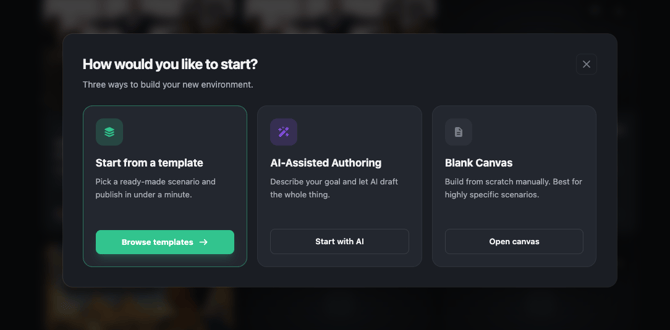
- Start from a Template (Recommended) — launches a gallery of ready-made scenarios you can create from in one click. See Starting a Roleplay Environment from a Template.
- AI-Assisted Authoring — generates a complete environment from your goals and source documents.
- Blank Canvas — opens the editor empty for manual authoring. Best for highly specific scenarios.
- Click Start with AI. The AI-Assisted Authoring screen opens:
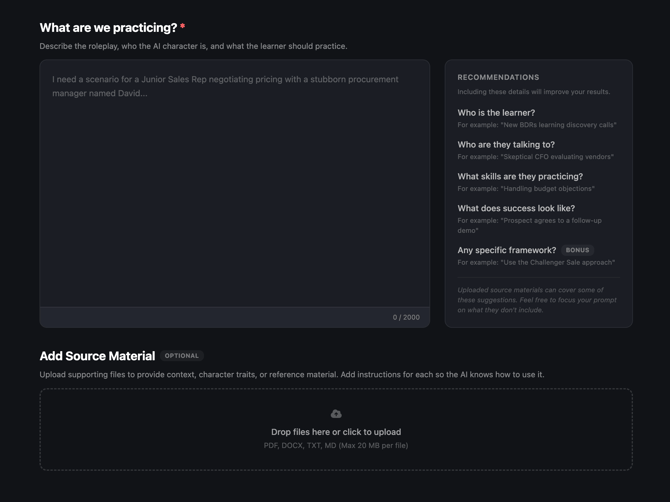
- Write your prompt in the "What are we practicing?" field (up to 2000 characters). Describe the roleplay, who the AI character is, and what the learner should practice. A recommendations panel on the right suggests what to include:
- Who is the learner?
- Who are they talking to?
- What skills are they practicing?
- What does success look like?
- Any specific framework? (bonus)
- Example: "I need a scenario for a Junior Sales Rep negotiating pricing with a stubborn procurement manager named David."
- Add Source Material (optional) - drag and drop files or click to upload. Supported formats: PDF, DOCX, TXT, MD. Maximum 20 MB per file. Add instructions for each file so the AI knows how to use it. Uploaded materials can cover some of the recommendations above - focus your prompt on what they don't.
- Click "Generate Environment". Generation may take a couple of minutes.
Note: A reminder reads "AI can make mistakes. Please review for accuracy." before you generate and while editing. Review all generated content before publishing.
Reviewing Your First Draft
- Title — a concise environment name
- Description — learner-facing scenario context and instructions
- Learning Goals — 3 to 5 specific objectives
- AI Character — name, description, instructions, suggested voice, and personality
Refining with AI

-
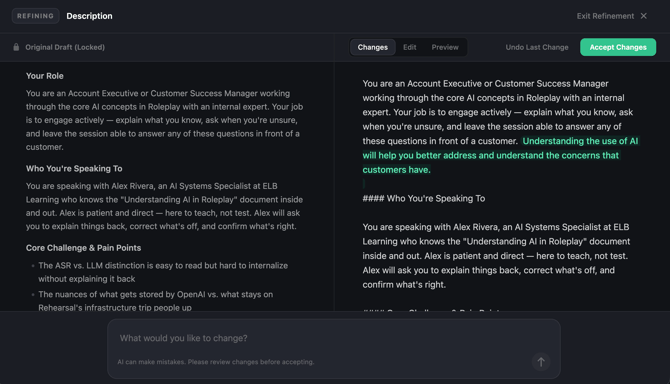
Click on the "Refine with AI" button. The current content is displayed with the original draft locked.
- Type what you want changed in the prompt bar at the bottom - "What would you like to change?"
- Examples: "Make it more conversational." / "Add emphasis on compliance requirements." / "Make the character more skeptical."
- The AI applies edits and highlights changes inline, similar to tracked changes in a document.
- Use the tabs at the top to review: Changes shows the differences, Edit lets you make manual tweaks, Preview shows the final result.
- Click Accept Changes to keep the edits, or Undo Last Change to revert and try a different prompt.
- Click Exit Refinement when you are done.
AI Instructions field
- Auto-Draft — shown when the field is empty. Generates a first version from the current title, description, and goals in one click, no prompt needed.
- Refine with AI — shown once the field has content. Opens the side-by-side refinement view so you can iterate on what is already written.
Conversation Mode
Every environment runs in one of two conversation modes, which control how learners take their turns when speaking with the AI character:
- Continuous mode (default) — learners speak hands-free. The system automatically detects when they start and stop talking and hands the turn to the AI character. Best for a natural, realistic conversation flow.
- Manual mode — learners press a button to start and stop each turn. Best for deliberate, reflective practice, where learners pause to absorb feedback before responding.
New environments default to Continuous mode. You can switch an environment to Manual at any time while authoring it — both modes are fully supported, so choose the one that fits the skill being practiced.
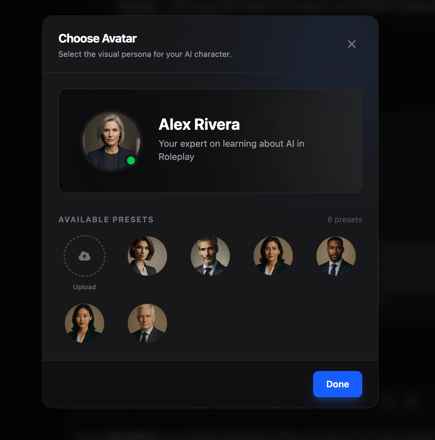
Custom AI Character Image
Editing Fields Manually
Every field in the editor is editable at any time. You are not required to use AI generation or refinement — you can edit any field directly, and your edits are preserved when you use AI tools later. Uploaded documents stay available so you can return to AI refinement at any point without re-uploading.
When you paste into the Description field from Microsoft Word or a web page, the content renders cleanly as Markdown — no stray formatting tags are carried over.
Finding Your Environments
The Environments list sorts by Date Created, newest first, so a newly published environment appears at the top of the list. If you change the sort order, your preference is saved and restored the next time you visit the list.
Need help? Submit a ticket to Customer Solutions for help building or editing Roleplay environments.