
Text mode lets learners practice by typing to the AI character instead of speaking. Everything else works the same as a voice session: the scenario, the AI character, the goals, in-session coaching, and scoring. Use it where speaking out loud isn't practical, such as a busy room full of learners, a shared office, or a front-line role where people can't talk during a shift.
Choose Your Interaction: Voice or Text
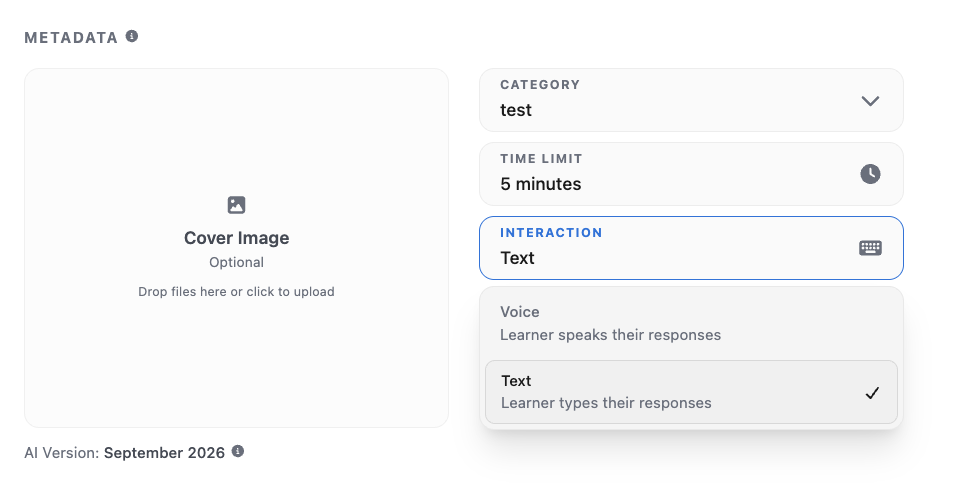
Every environment has an Interaction setting with two options:
- Voice - the learner speaks their responses.
- Text - the learner types their responses.
To set it:
- Open the environment in the editor.
- In the Metadata section, open the Interaction dropdown and choose Voice or Text.
- Save and publish.
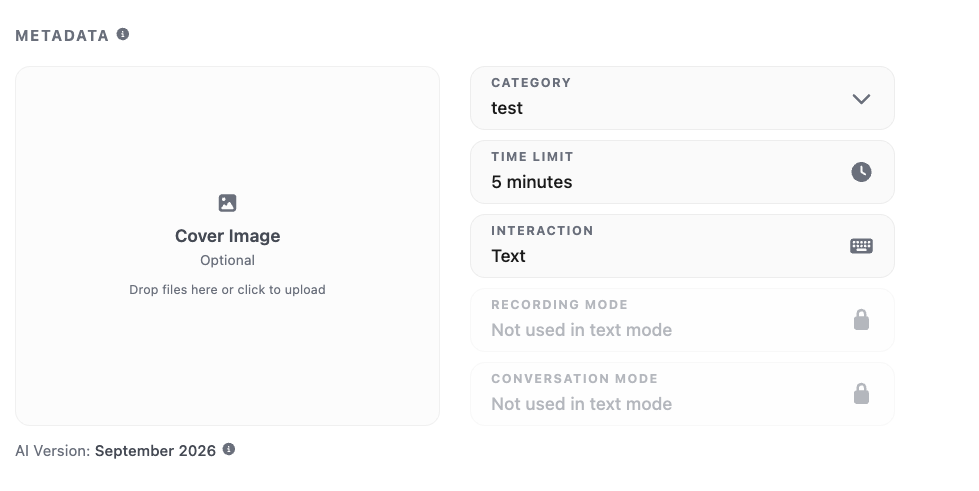
New sessions in the environment run in the mode you choose. Recording Mode and Conversation Mode only apply to voice, so they're locked and marked "Not used in text mode" while Text is selected. Switching back to Voice unlocks them.
Switching Between Voice and Text
Switching is one setting. You don't need to rebuild the environment, re-enter the AI character, or rewrite goals. Everything you've authored carries over in both directions.
- The switch applies to new sessions. Sessions started after you change the setting use the new mode.
- Past sessions keep their mode. A session completed in text still shows as a text conversation in results and reporting, and a voice session still shows its recording.
- Authors control the mode, not learners. Learners run sessions in whatever mode the environment is set to.
This makes it easy to plan around an event. For example, run an environment in text during a live workshop where everyone is in the same room, then switch it to voice afterward for individual practice.
Offering voice and text at the same time
An environment runs in one mode at a time. To give learners both, duplicate the environment and set one copy to Voice and the other to Text. Name them clearly (for example "Pricing Negotiation - Voice" and "Pricing Negotiation - Text"). The copies aren't linked, so any change to the AI character, description, or goals has to be made in both.
What Learners See
A text session looks like a chat window.
- No camera or microphone setup. Learners go straight from the session preview to the conversation, with no device permissions to grant.
- The AI character's picture stays on screen next to the conversation.
- Goals are visible during the session, just as they are in voice sessions.
- Coaching appears directly below the message it relates to, so learners can read it without looking away from the conversation.
- Who speaks first follows the environment's setting. The AI character can open the conversation, or the learner can.
- Time limits work the same as in voice sessions.
Results and Reporting
Text sessions are scored exactly like voice sessions, with the same goals, performance metrics, and AI analysis, and they appear in Reporting alongside voice sessions.
The session's results show the full conversation as a chat thread in place of a video. Coaching can be expanded beside each message. As with voice sessions, you can copy or download the transcript with or without coaching.
Need help? Submit a ticket to Customer Solutions for help setting up text mode in your Roleplay environments.