
If the AI character does something strange — playing your role, ignoring what you said, or putting words in your mouth — your browser is probably recording from the wrong microphone. When Roleplay receives silence, the speech-to-text service can fill it in with hallucinated text, and the AI responds to that nonsense.
Symptoms
-
The AI plays your role (e.g., it coaches you when you were supposed to coach it).
-
The AI ignores what you said.
-
The transcript contains phrases you didn't say — common artifact:
"Thank you for watching." -
The transcript is empty or much shorter than what you spoke.
Fix: Select the Correct Microphone
On the Session setup screen, before clicking Begin Session:
-
Click Settings in the bottom toolbar.
-
Open the Microphone dropdown and pick the device you actually want to use.
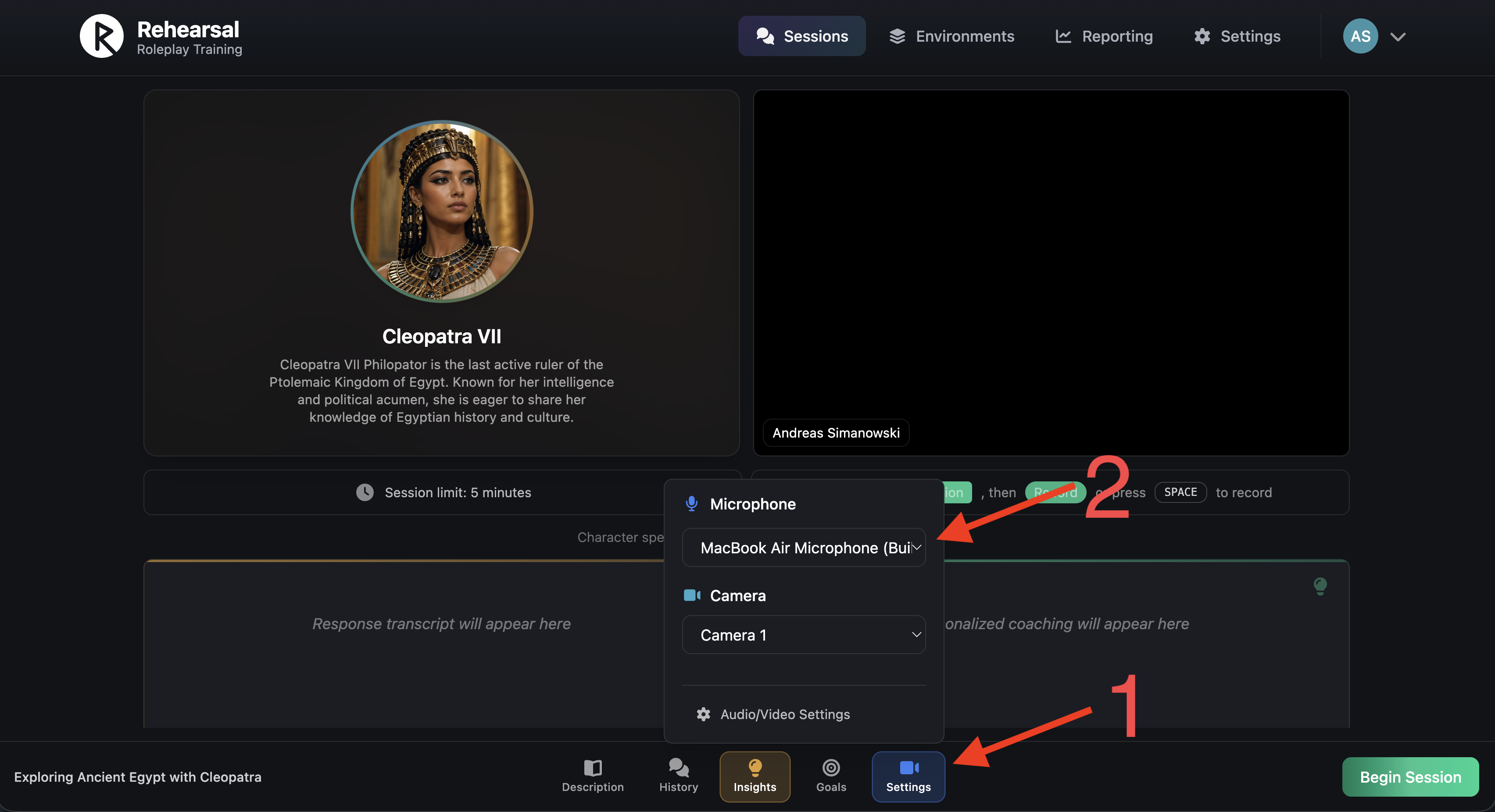
If the right device isn't listed or all options are silent, check your OS sound settings and disconnect any unused Bluetooth devices (paired phones and idle headsets are the most common cause). Then reopen the Roleplay Settings popup and reselect.
Verify with Replay
After a Session, open it from your History and switch to the Replay tab. Press Play and listen to your own turns:
-
Silent audio, but transcript has text → mic wasn't capturing. Fix the mic and retry.
-
Audio matches transcript → mic was fine; the issue is elsewhere. Contact your administrator.
Tips
-
Use Chrome or Edge.
-
Disconnect Bluetooth devices you aren't using.
-
Test your mic in the Settings popup every time before starting.
Need help? Contact your training administrator or submit a support request.