
November 05, 2026
What are Auto-Recurring Enrollments
Courses with auto-recurring enrollments automatically re-enroll users after a set time period. Administrators can configure this for individual users, multiple users, or entire enterprises and offices. This feature commonly supports compliance training requiring annual, semiannual, or monthly completion cycles.
Setting up Auto-Recurring Enrollments
Step 1: Open Course Editor
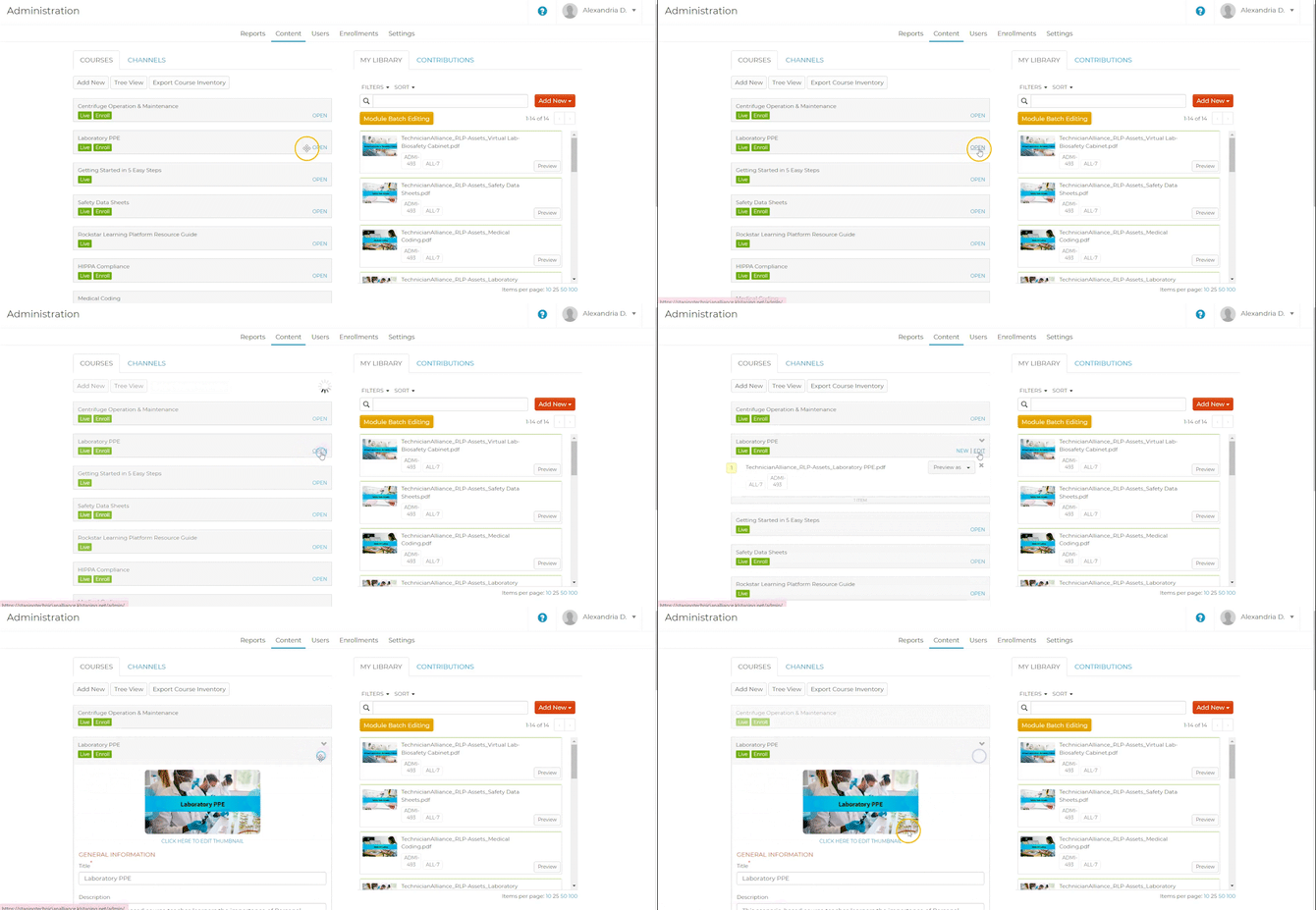
Navigate to the “Content” tab of the Admin portal. Select “Open” on a course and open the course editor by selecting “Edit”.
Step 2: Set Recurring Enrollment
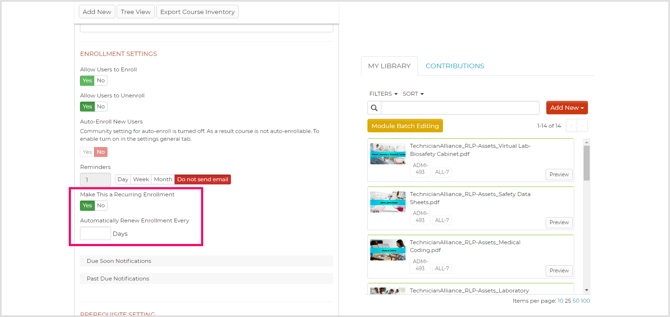
Toggle "Yes" under "Make This a Recurring Enrollment" and enter the desired number of days. The enrollment recurs that many days after the initial enrollment period begins.
Example: An enrollment on August 1st with 90-day recurrence renews on October 29th, January 27th, and continues indefinitely until disabled by an administrator.
Note: Maximum recurring enrollment period is 999 days
Recurring on a set date instead of a number of days
A number of days is counted from each learner's own enrollment, so learners enrolled at different times recur at different times. If you would rather everyone recur together — for example, every compliance course renewing on the same day each year — you can set a date for the recurrence instead. This was added in release 2.8 (February 17, 2025).
Step 3: Confirm Recurring Enrollment
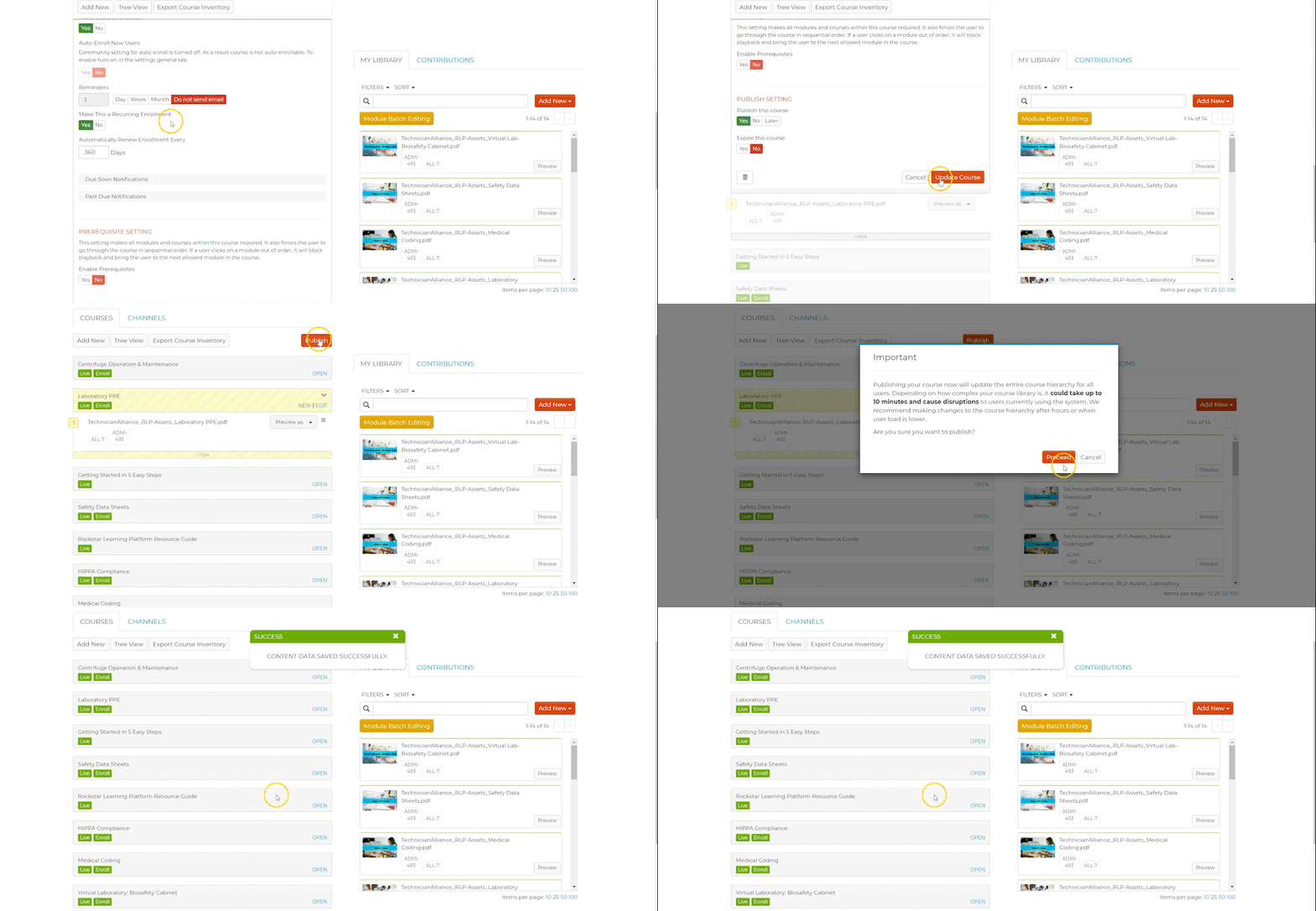
Select “Update Course” and then select “Publish” to finalize your changes.
Related: Add due dates using relative due dates rather than specific dates. See How to Set Enrollment Due Dates and Due Date Notifications for Courses and Modules for details.
Check Recurring Enrollment Status in Enrollments
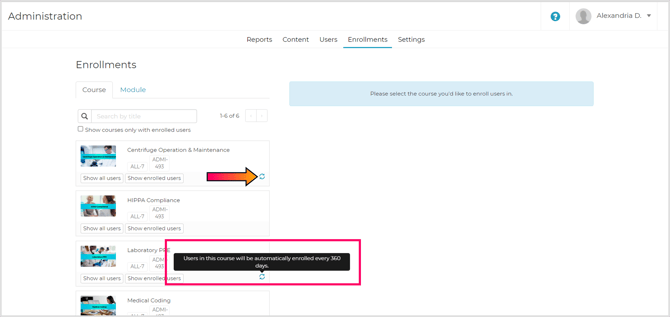
In the "Enrollments" admin tab, courses with recurring enrollments display a circular arrow icon. Hover over it to view the recurrence frequency.
View Completion History for Auto-Recurring Enrollments
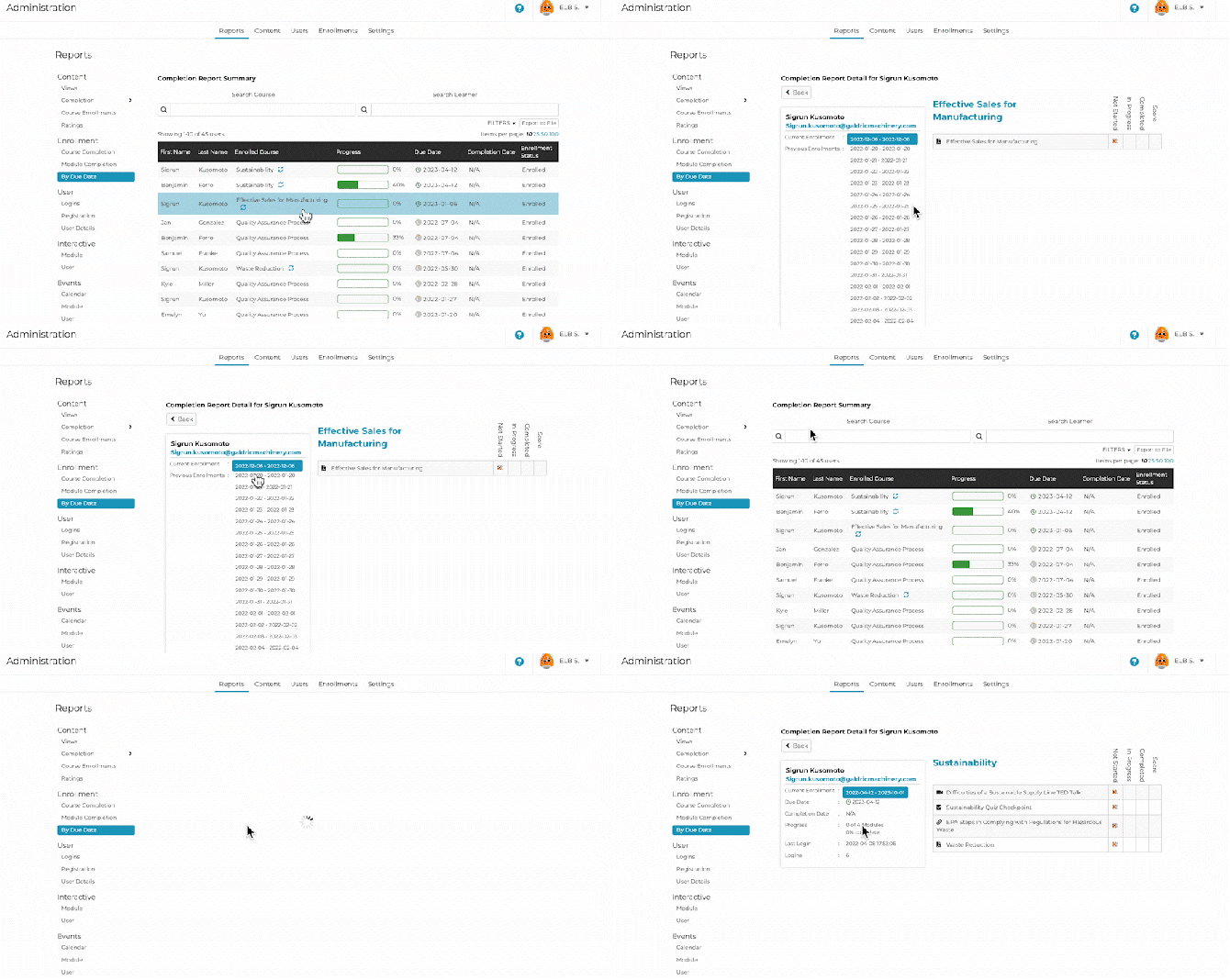
Navigate to "Reports" > "By Due Date" under "Enrollment." Each row represents a user's data for a specific course. Select a row to view all enrollment periods for that user-course combination.
Recurring enrollments and certificate expiration
If the course issues a certificate that expires, the certificate's expiration and the enrollment's recurrence are two separate settings. Set them deliberately: a certificate that expires before the next recurrence leaves the learner uncertified for the gap, and one that expires well after it leaves a learner holding a valid certificate for a cycle they have not yet retaken.